
Expense Reports

Run an expense report for any date range, filter it, then export a CSV, email it to yourself, or schedule it to send on a repeating basis. Expense reports are included on Pro and Enterprise.

  • On Pro and above
  • Filter and export a CSV
  • Email or schedule
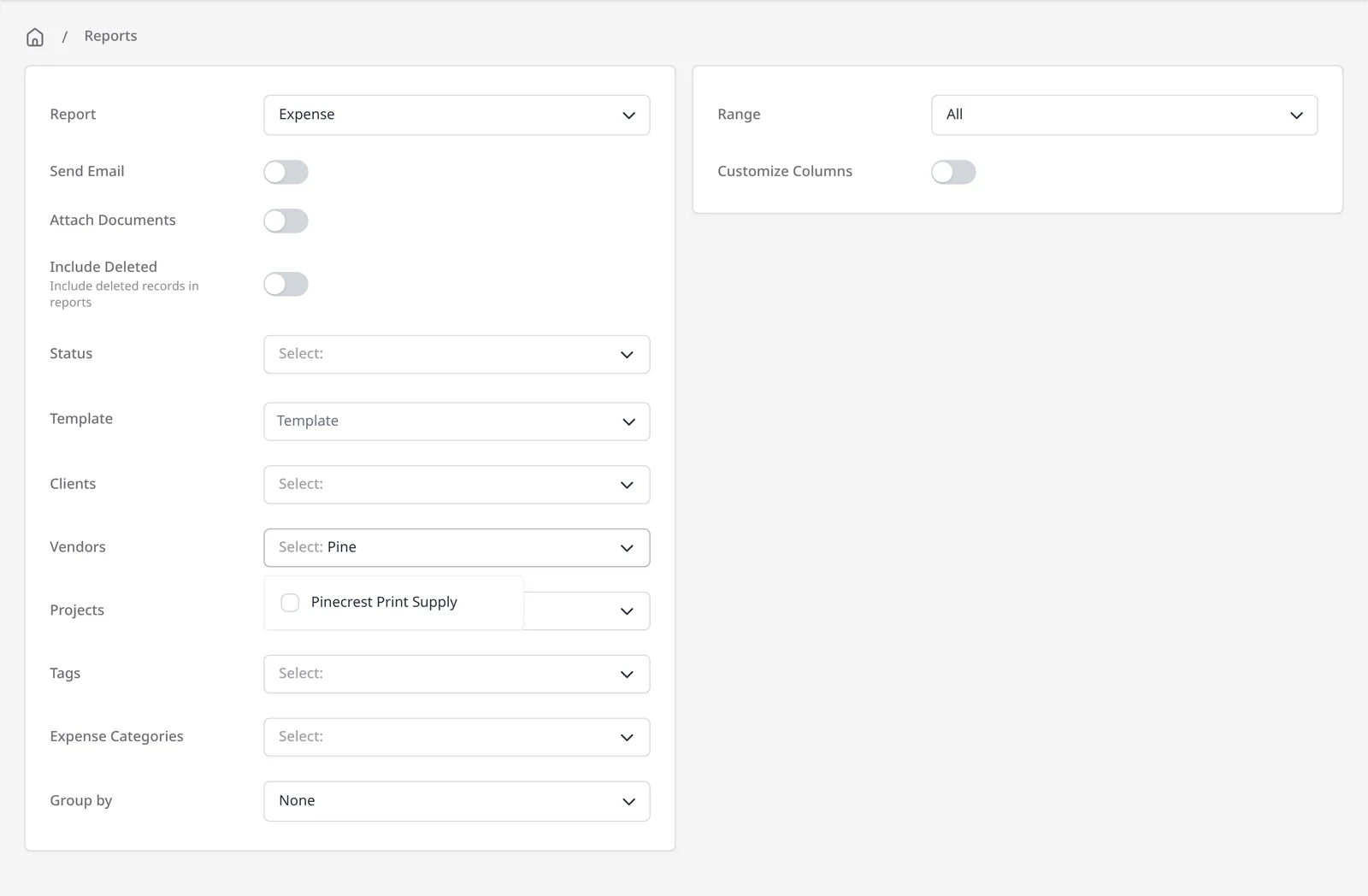
Expense report filters, including Range, Vendors, Expense Categories, Clients and Group by

How it works

Run the expense report, then export, email or schedule it

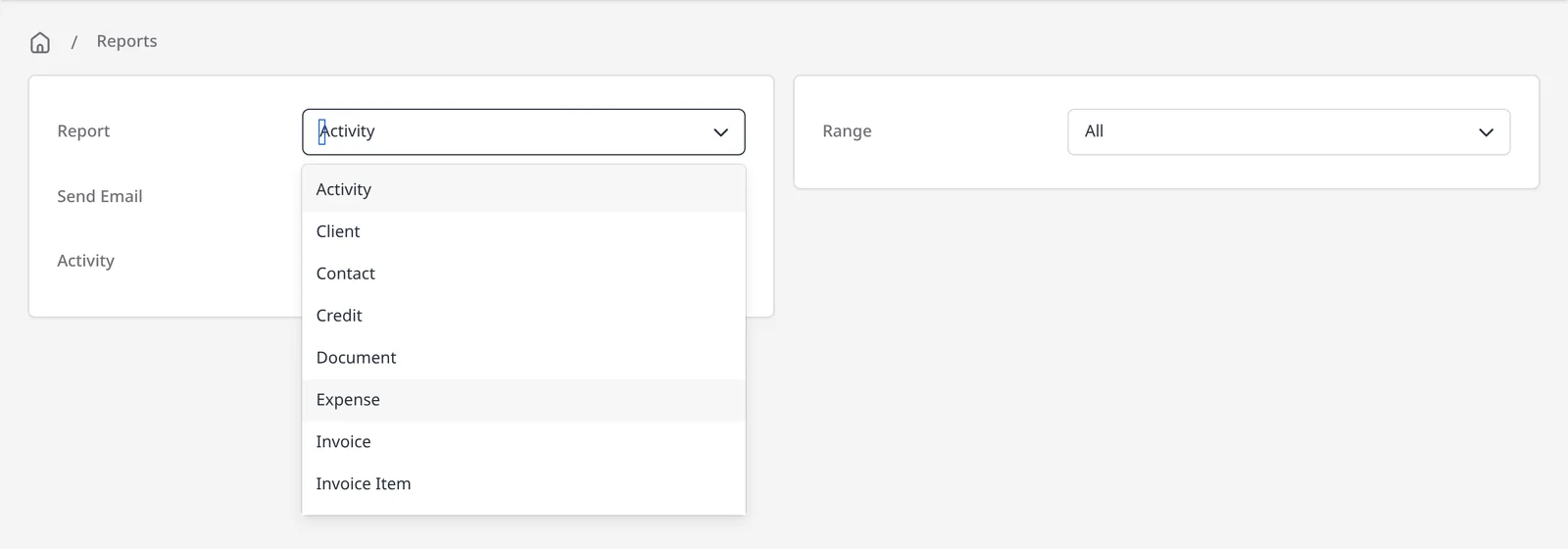
  1. Reports module with the report type list open and Expense highlighted

    Open the Expense report

    In Reports, choose Expense. This is part of the same Reports module as invoices, payments and profit and loss, on Pro and Enterprise.

  2. Expense report filters, including Range, Vendors, Expense Categories, Clients and Group by

    Set the range and filters

    Pick a Range, then narrow the report with filters such as Vendors, Expense Categories, Clients, Projects, Tags or Status. You can also group the results.

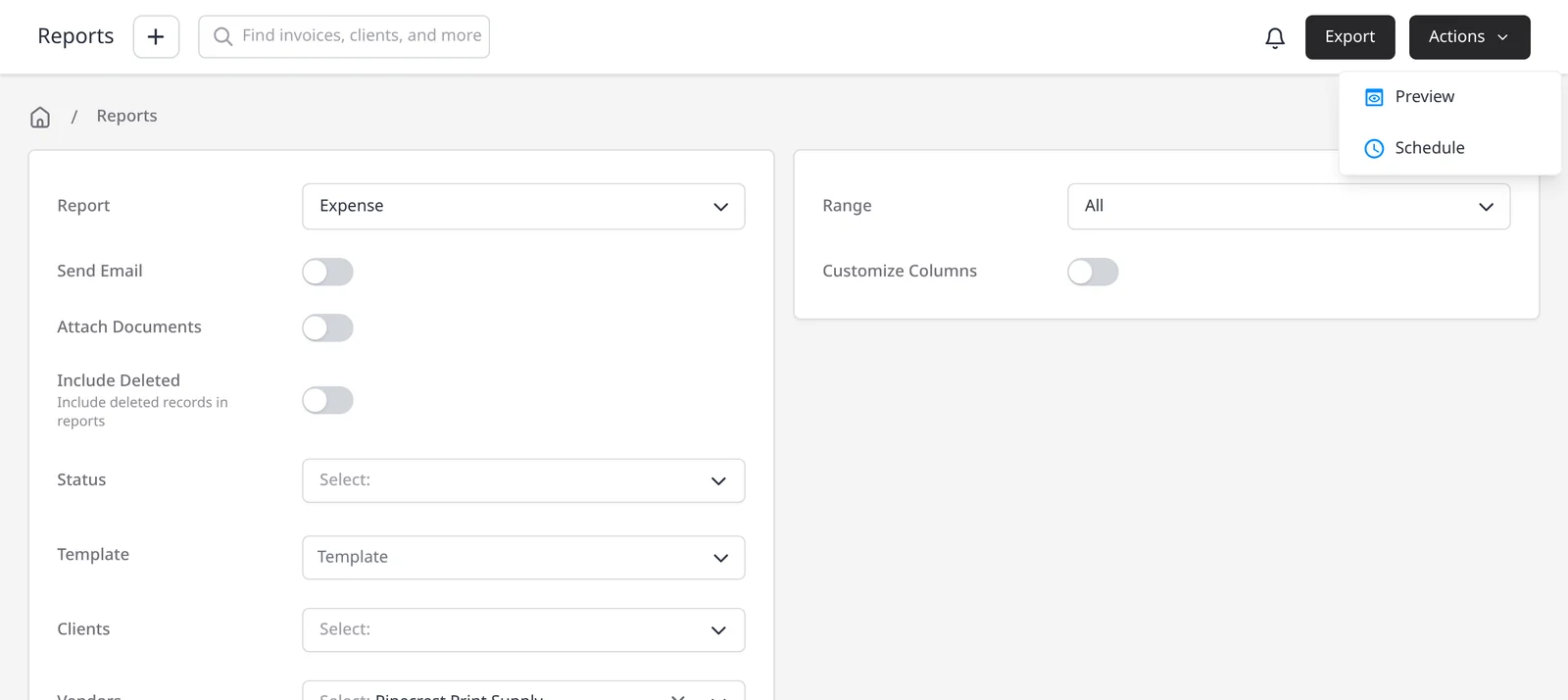
  3. Reports Export button and Actions menu, with Preview and Schedule, on an Expense report

    Export, email or schedule

    Use Export to download a CSV. Turn on Send Email to email the report when you run it, use Actions, then Preview to see it on screen, or use Actions, then Schedule to send it on a repeating basis, from daily to every 3 years.

See what you spent, in a report you can reuse

Once you are logging expenses, an expense report turns that list into something you can filter, export, email or schedule. Run it for a date range, then narrow it (for example by vendor, expense category or client) so you or your accountant get a clean CSV. Expense reports are part of the Reports module, which is included on Pro ($14/mo) and Enterprise (from $18/mo). Free plans do not have access to the reporting module.

Every report, including Expense, exports as a CSV and can be emailed when you run it. Use Actions, then Preview to see the results on screen. Reports are not exported as a PDF. To send the expense report on a repeating basis, use Actions, then Schedule (the Email Report template), from daily to every 3 years. For the full set of report types, see invoice and payment reports. For totals across income and costs, see profit and loss.

What you can do

  • Run an Expense report on Pro and Enterprise, for any date range you choose
  • Filter by Vendors, Expense Categories, Clients, Projects, Tags or Status, and group the results if you want
  • Export a CSV, email it to yourself when you run it, or preview the results on screen
  • Schedule the report to send on a repeating basis, from daily to every 3 years

Who it’s for

Owners and bookkeepers who already log expenses in Invoice Ninja and want a filtered list, a CSV for the accountant, or a report that arrives on a schedule.

What you can do

  • Expense report Pro

    Run an Expense report for a date range, on Pro and Enterprise.

  • Filters that narrow spend Pro

    Narrow by Vendors, Expense Categories, Clients, Projects, Tags or Status, and use Group by when you want the results summarized.

  • Export or email a CSV Pro

    Every report exports as a CSV. Turn on Send Email, or use Actions, then Preview to see the results on screen.

  • Schedule it Pro

    Use Actions, then Schedule to email the report on a repeating basis, from daily to every 3 years.

  • Fits with profit and loss Pro

    Use this report for a detailed expense list, and profit and loss when you want income and costs together.

Tip: Filter by vendor or expense category before you export, so the CSV is ready for you or your accountant. Schedule it if you want that same report in your inbox on a regular cadence.

Common questions

Are expense reports included on the free plan?

No. All reporting, including the Expense report, is included on Pro and Enterprise. Free plans do not have access to the reporting module. You can still log expenses on every plan, including Free.

Can I schedule an expense report?

Yes. In Reports, use Actions, then Schedule. That opens a New Schedule with the Email Report template. Set the range, next run, frequency (from daily to every 3 years) and remaining cycles.

Can I export or preview the report?

Yes. Every report exports as a CSV, and you can email it to yourself when you run it. Use Actions, then Preview to see the results on screen. Reports are not exported as a PDF.

Is this the same as profit and loss?

No. An expense report is a filtered list of costs. Profit and loss is the wider picture of income and expenses together. You can use both on Pro and Enterprise.

Can I see spend by vendor or category?

Yes. The Expense report includes Vendors and Expense Categories filters, plus Clients, Projects, Tags, Status and Group by. Narrow the list before you export.

Ready to send your first invoice?

Join 200,000+ businesses invoicing with Invoice Ninja. Free to start, no credit card required.