Bank Account Sync

Connect a bank account with Yodlee or GoCardless to import transactions, then match deposits to invoices and withdrawals to expenses. Bank account sync is included on Enterprise.

  • On Enterprise
  • Yodlee or GoCardless
  • Match payments and expenses
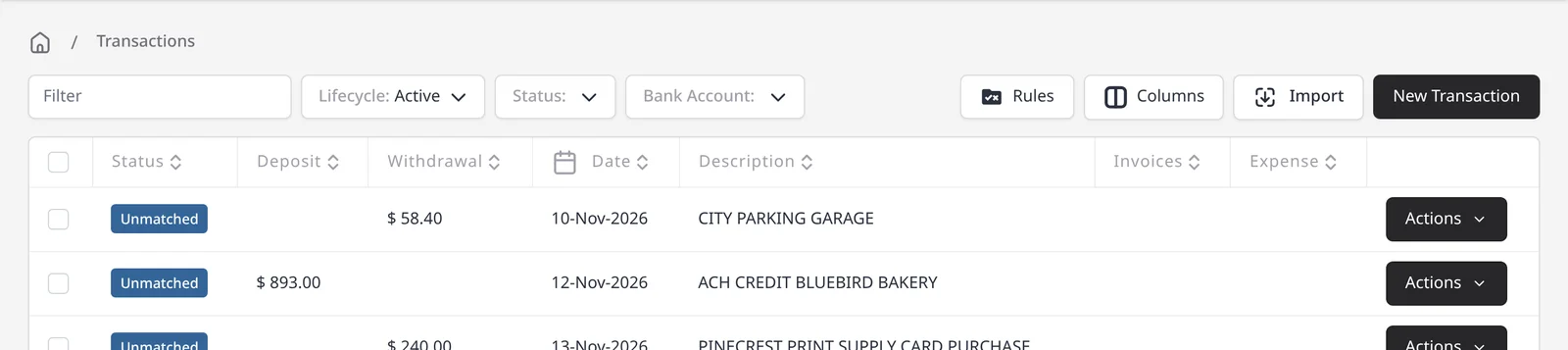
Invoice Ninja Transactions list, with unmatched deposits and withdrawals from Bluebird Bakery and Pinecrest Print Supply

How it works

Import the feed, then match what came in and what went out

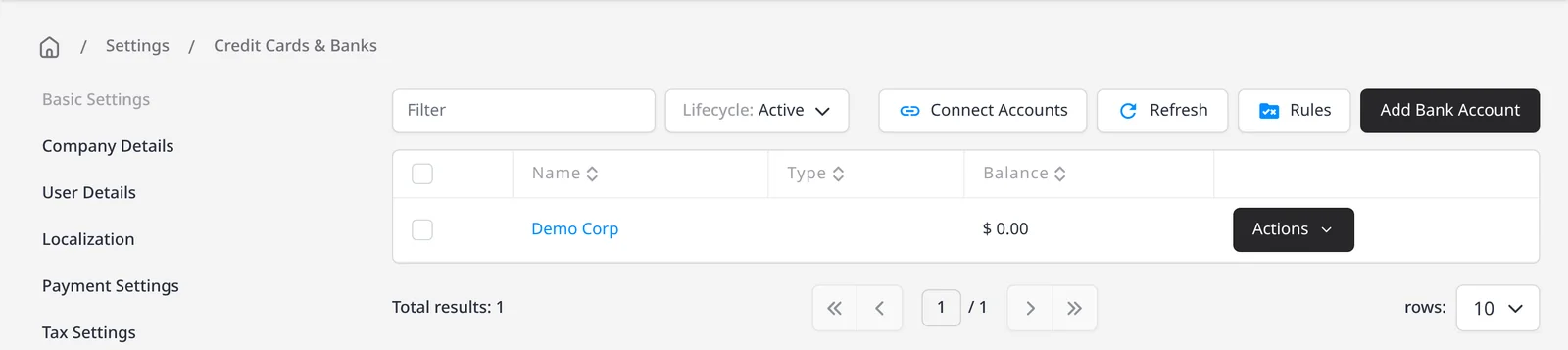
  1. Credit Cards and Banks settings, with Connect Accounts, Refresh, Rules and Add Bank Account

    Connect your bank

    In Settings, then Credit Cards and Banks, choose Connect Accounts to link a bank. You can also Refresh, open Rules, or Add Bank Account. On a linked account, turn on Auto Sync if you want fresh transactions pulled automatically.

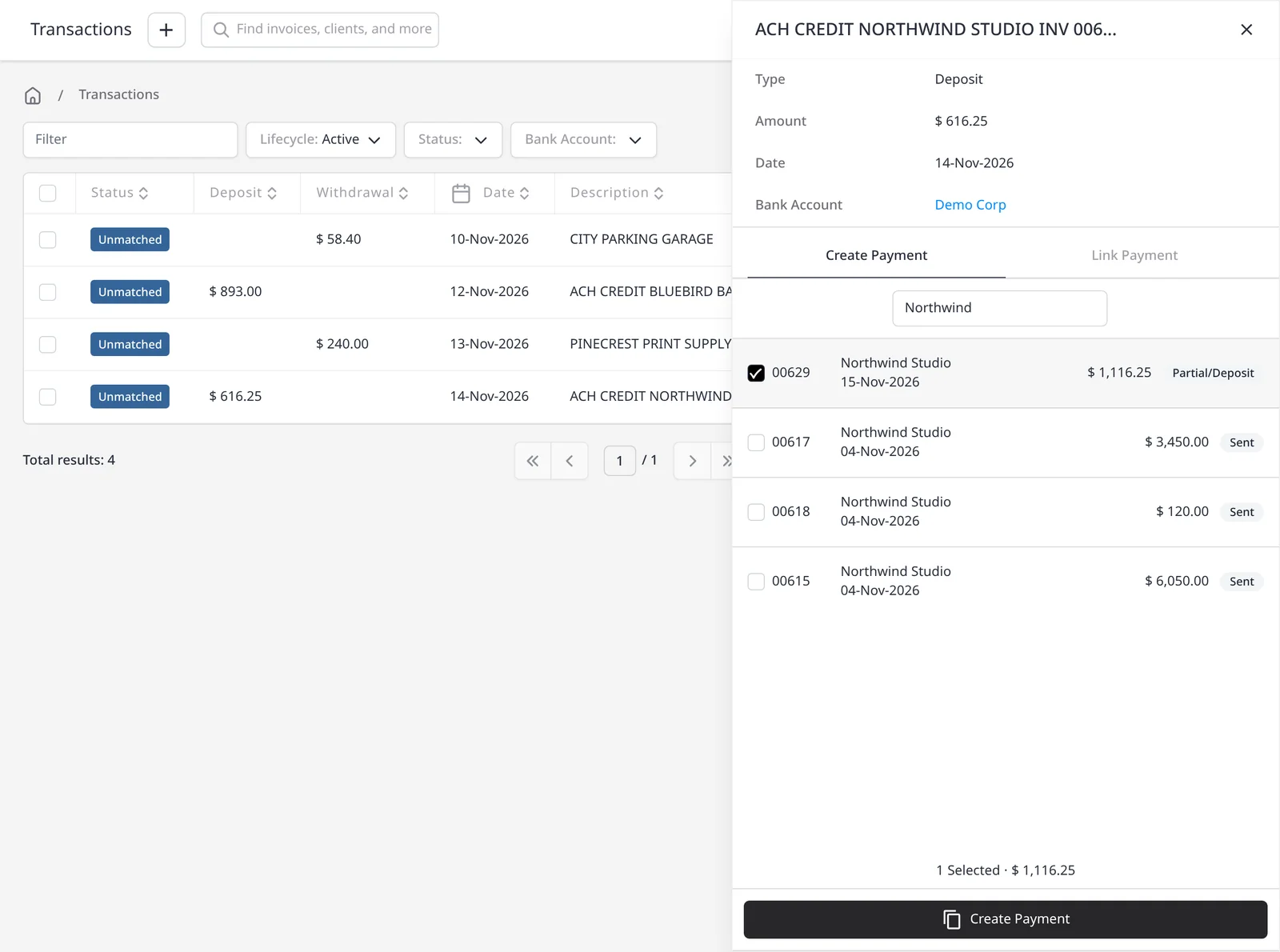
  2. Transaction side panel for a Northwind Studio deposit, with Create Payment and Link Payment

    Review imported transactions

    New lines land in Transactions as unmatched. Open a deposit to Create Payment or Link Payment, or a withdrawal to Create Expense or Link Expense.

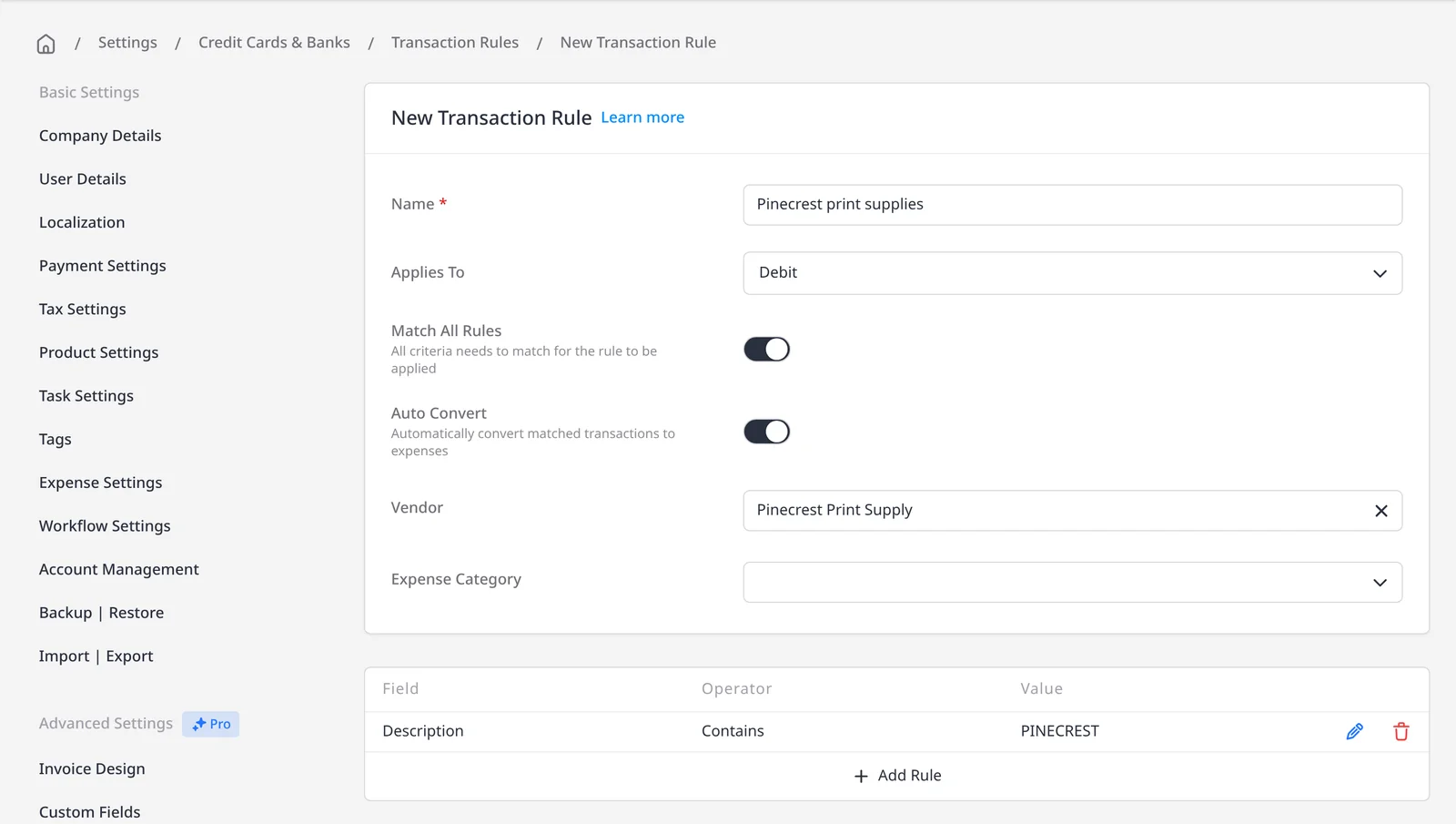
  3. New Transaction Rule for Pinecrest Print Supply, with Auto Convert turned on

    Convert, or let a rule do it

    Create a payment from a deposit, or an expense from a withdrawal. A Transaction Rule can match later lines and, with Auto Convert, turn them into expenses or payments for you.

Bring bank transactions into the same place you invoice

Bank account sync pulls your bank transactions into Invoice Ninja so you can match money coming in to invoices, and categorize money going out as expenses, without retyping each line. On hosted Invoice Ninja, Yodlee connects to many major US banks, and GoCardless covers many major banks in the EU and UK. Live bank sync is included on Enterprise (from $18/mo).

Connect from Settings, then Credit Cards & Banks, then Connect Accounts. You can also Refresh the feed, open Rules, or Add Bank Account. After you sign in with your bank, pick the accounts to link. On each account, Auto Sync can be turned on or off, depending on whether you want transactions pulled on a schedule or only when you refresh. Imported lines show up in Transactions as unmatched. Open a deposit to Create Payment or Link Payment, or a withdrawal to Create Expense or Link Expense. A Transaction Rule can do that matching, and conversion, for you.

This is not the same as ACH and bank transfers, which are how clients pay your invoices. If a bank is not supported, or you prefer not to link a live account, you can import a CSV from Transactions after you have added a bank account.

What you can do

  • Connect a bank with Yodlee or GoCardless, on Enterprise
  • Turn Auto Sync on or off for each linked account
  • Create or link a payment from a deposit, and create or link an expense from a withdrawal
  • Use Transaction Rules to match and convert later transactions automatically
  • Import a CSV instead, if you do not want to link a live account

Who it’s for

Owners who want bank activity next to invoices and expenses, so payments and costs can be reconciled without a separate spreadsheet.

What you can do

  • Connect with Yodlee or GoCardless Enterprise

    Link supported US banks through Yodlee, or many EU and UK banks through GoCardless, on Enterprise.

  • Auto Sync per account Enterprise

    Pull fresh transactions on a schedule for the accounts you choose, or refresh them yourself.

  • Match deposits to invoices Enterprise

    Open a deposit to Create Payment or Link Payment, so money in is tied to the invoice it pays.

  • Categorize withdrawals as expenses Enterprise

    Open a withdrawal to Create Expense or Link Expense, with a vendor and category when you have them.

  • Transaction Rules Enterprise

    Save a rule with Auto Convert so later transactions can be matched and converted for you.

Tip: Turn on Auto Sync for accounts you want refreshed automatically, and leave it off if you prefer to Refresh them yourself. This sync imports your bank activity; it is not how clients pay invoices.

Common questions

Is bank account sync included on the free plan?

No. Connecting a bank with Yodlee or GoCardless is included on Enterprise. If you need to bring transactions in another way, you can import a CSV after you have added a bank account.

Is this the same as ACH or bank transfers?

No. ACH and bank transfers are how your clients pay invoices. Bank account sync imports your own bank transactions so you can match payments and expenses.

Which banks can I connect?

Yodlee connects to many major US banks, and GoCardless covers many major banks in the EU and UK. During Connect, you search for your bank and sign in with that bank. If your bank is not supported, import a CSV instead.

Do I have to turn on Auto Sync?

No. Auto Sync can be on or off for each account, under Edit Bank Account. With it off, transactions stay at whatever was last pulled until you use Refresh.

Can I connect more than one account?

Yes. You can link more than one account from the same bank, and you can connect additional banks afterward.

Ready to send your first invoice?

Join 200,000+ businesses invoicing with Invoice Ninja. Free to start, no credit card required.

This site is registered on wpml.org as a development site. Switch to a production site key to remove this banner.