
Auto Sales Tax (US)

Let Invoice Ninja calculate US sales tax from the ship-to address, your seller state, and the product’s tax category. Automatic calculation is included on Pro and Enterprise, with no extra Invoice Ninja fee, and is powered by Zip-Tax.

  • Pro & Enterprise
  • By state and address
  • Product tax categories
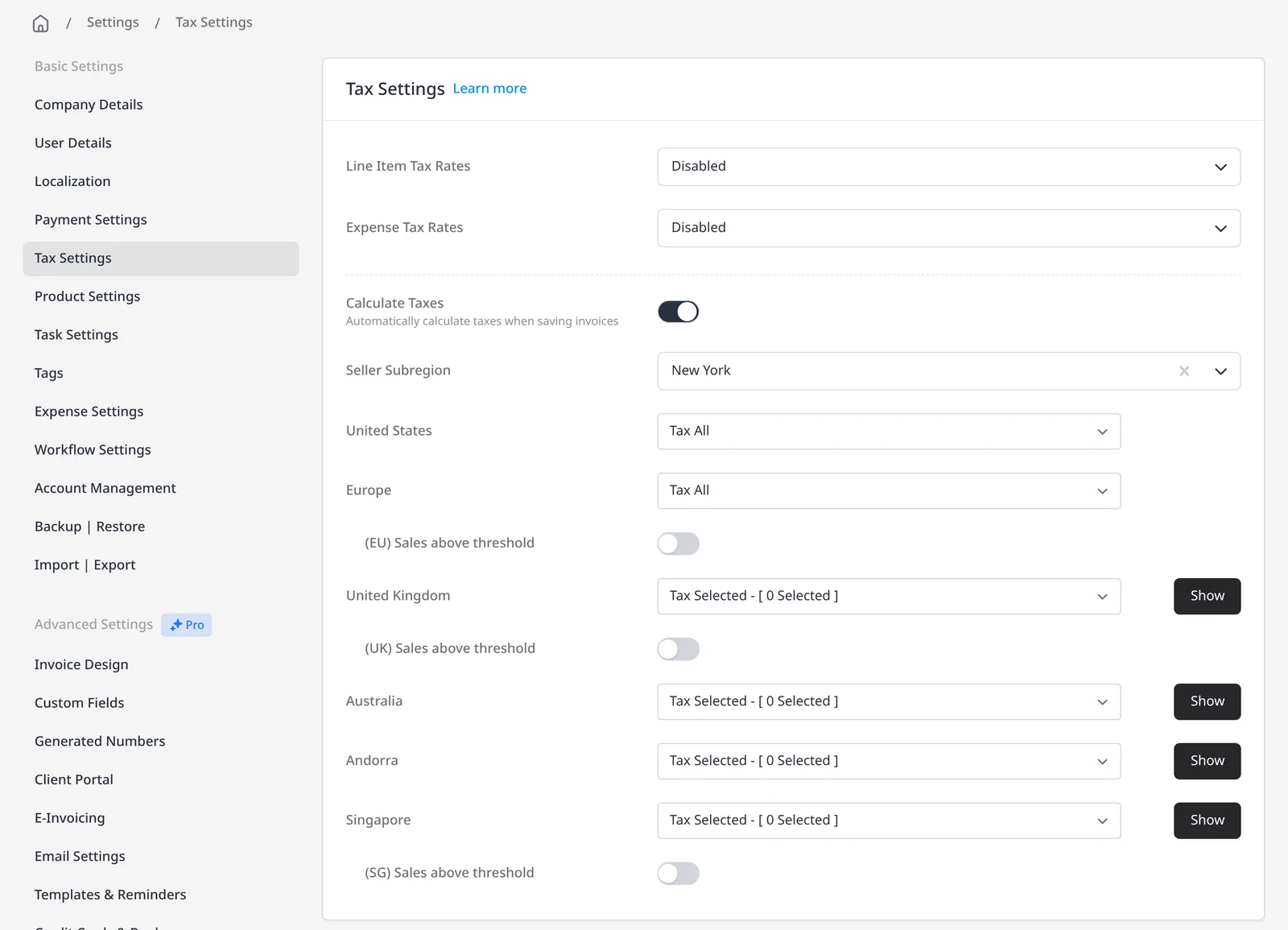
Invoice Ninja Tax Settings with Calculate Taxes turned on

How it works

Turn on calculation, then check the invoice

  1. Invoice Ninja Tax Settings with Calculate Taxes turned on

    Turn on Calculate Taxes

    On a Pro or Enterprise plan, set your company country to the United States under Company Details, then open Settings → Tax Settings and turn on Calculate Taxes.

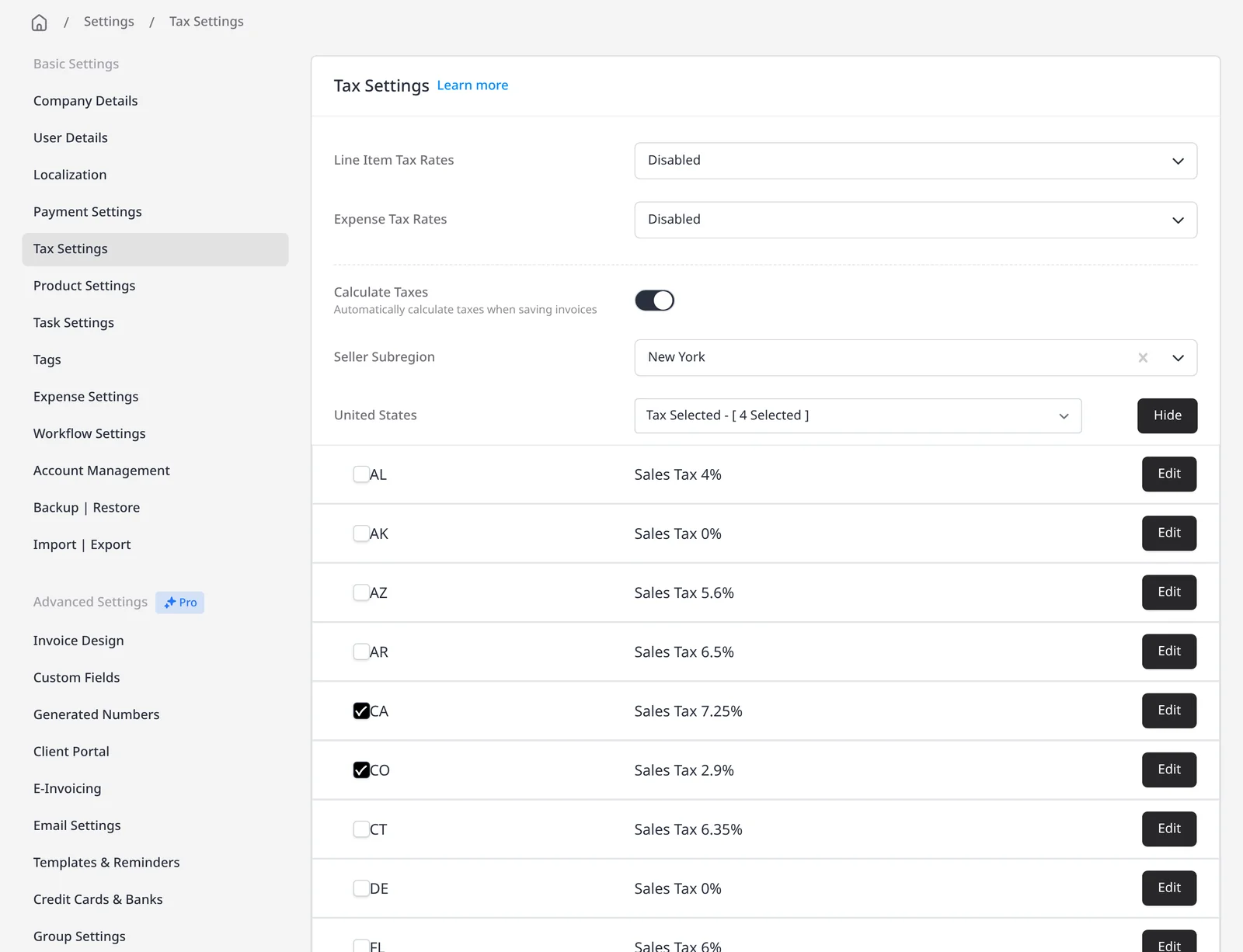
  2. Tax Settings showing selected US states for sales tax collection

    Set your state and where you collect

    Choose your seller state, then tax all states or only the states where you are registered to collect.

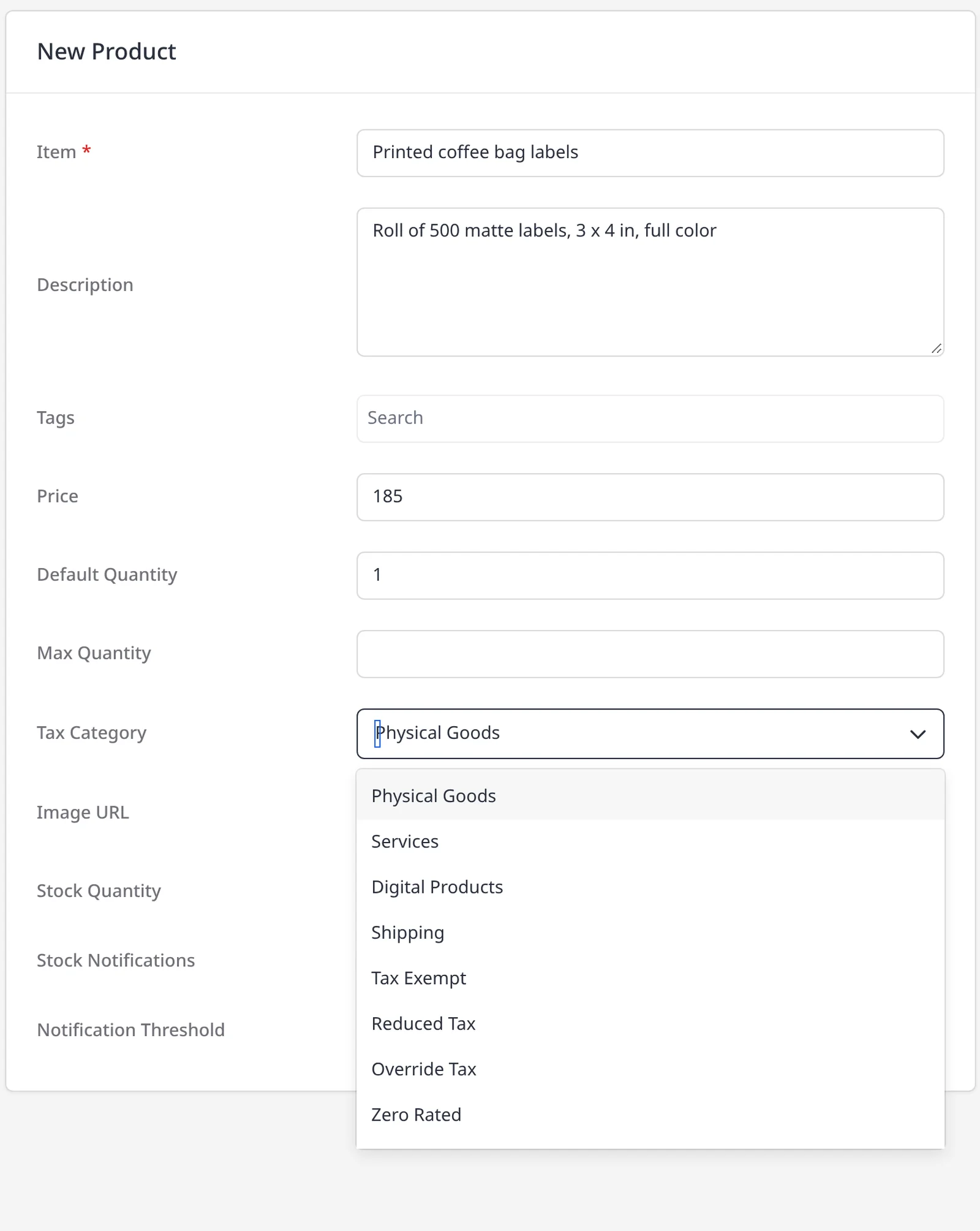
  3. Product edit screen with a tax category selected

    Categorize products and preview

    Give each product a tax category, such as Physical Goods, Services, Digital Products or Tax Exempt. Preview the invoice before you send it.

Calculate US sales tax from the address, not a guess

US sales tax is set at the state, and often the county or city, so the rate depends on where the sale is delivered and what you are selling. Invoice Ninja can calculate that for you from the ship-to address on the invoice, your seller state, and the product’s tax category. Automatic calculation is included on Pro ($14/mo) and Enterprise (from $18/mo), with no extra Invoice Ninja fee, and is powered by Zip-Tax.

To use it, your company country must be set to the United States under Company Details (the Calculate Taxes option also appears for Australia and EU countries). Then go to Settings → Tax Settings, turn on Calculate Taxes, set your seller subregion (the US state where your business is registered for tax) and choose whether to tax all states or only selected states. If a client has sites in more than one state, you can attach a location so each document uses the right address.

Each product can have a tax category the calculator uses, including Physical Goods, Digital Products, Services, Shipping, Tax Exempt, Reduced Tax, Override Tax, Zero Rated and Reverse Tax (Use Tax). If a client is tax-exempt, turn on Tax Exempt on the client record and tax is skipped on their invoices. Always preview the invoice before you send it. The calculation is only as accurate as the address, category and seller state you have entered. This is not tax advice; check the rules that apply to your business.

You can also set tax rates yourself under Tax Settings. Manual tax settings are included on every plan, including Free: inclusive or exclusive tax, as many rates as you need, default rates that apply automatically, and tax on each line or on the invoice total. That setup is separate from automatic calculation. If you only need rates you set yourself, manual may be enough. If you sell into many states, automatic calculation is what this page is about.

What you can do

  • Calculate US sales tax automatically on Pro and Enterprise, with no extra Invoice Ninja fee
  • Use rates powered by Zip-Tax, based on the ship-to address, your seller state, and the product tax category
  • Tax all states, or only the states where you are registered to collect
  • Mark a product category, or mark a client tax-exempt
  • Or use full manual tax settings on every plan, including Free, for inclusive or exclusive rates, defaults, line-item tax, and invoice-total tax

Who it’s for

US businesses that invoice clients in more than one state, or that need the rate to follow the delivery address and the type of product, without maintaining every rate by hand.

What you can do

  • Address-based rates Pro

    The calculator uses the ship-to address and your seller state to look up the rate.

  • All states or selected states Pro

    Tax every state, or only the states where you are registered to collect.

  • Product tax categories Pro

    Physical goods, services, digital products, tax-exempt and other categories change how the line is taxed.

  • Tax-exempt clients Pro

    Turn on Tax Exempt on the client and tax is skipped on their invoices.

  • Manual rates too

    Full manual tax settings are included on every plan, including Free: inclusive or exclusive tax, as many rates as you need, default rates, line-item tax, and invoice-total tax.

Tip: Set your company country and seller state first, then turn on Calculate Taxes under Settings → Tax Settings. Preview the invoice PDF before you send it.

Common questions

Is automatic US sales tax included on the free plan?

No. Automatic US sales tax (Calculate Taxes), powered by Zip-Tax, is included on Pro ($14/mo) and Enterprise (from $18/mo), with no extra Invoice Ninja fee. It is not available on the free plan. The free plan does include full manual tax settings: inclusive or exclusive tax, as many tax rates as you need, default rates that apply automatically, and tax on each line or on the invoice total.

How does Invoice Ninja know which rate to use?

It uses the ship-to address on the invoice, your seller state (the subregion you set in Tax Settings), and the product’s tax category. Rates are powered by Zip-Tax. You can tax all states or only selected states. Always preview the invoice; this is not tax advice.

What if a client is tax-exempt?

Edit the client and turn on Tax Exempt. Invoice Ninja will skip tax on that client’s invoices. You can also use a Tax Exempt product category when the item itself is not taxable.

Can I still set a tax rate myself?

Yes. Manual tax settings are included on every plan, including Free. You can create inclusive or exclusive tax, as many tax rates as you need, set a default rate that applies automatically, and apply tax to each invoice line or to the invoice total, under Settings → Tax Settings. That is separate from automatic US sales tax, which is Pro and Enterprise only.

Does this work outside the United States?

The Calculate Taxes option appears when your company country is the United States, Australia, or an EU country. This page is about automatic US sales tax. EU VAT and Australian GST have their own rules in the Invoice Ninja tax docs.

Will the tax always be correct?

Only if the address, seller state and product category are correct, and you have chosen the right states to collect in. Preview the invoice before sending, and follow the advice of your accountant or tax authority. Invoice Ninja does not replace that advice.

Ready to send your first invoice?

Join 200,000+ businesses invoicing with Invoice Ninja. Free to start, no credit card required.

This site is registered on wpml.org as a development site. Switch to a production site key to remove this banner.