
Quotes & Proposals

Send a professional quote, let your client approve it online, and turn it into a payable invoice — automatically, or in one click.

  • Included on every plan
  • Online approval
  • 1-click convert to invoice
Quotes & Proposals in Invoice Ninja

How it works

From quote to paid invoice in three steps

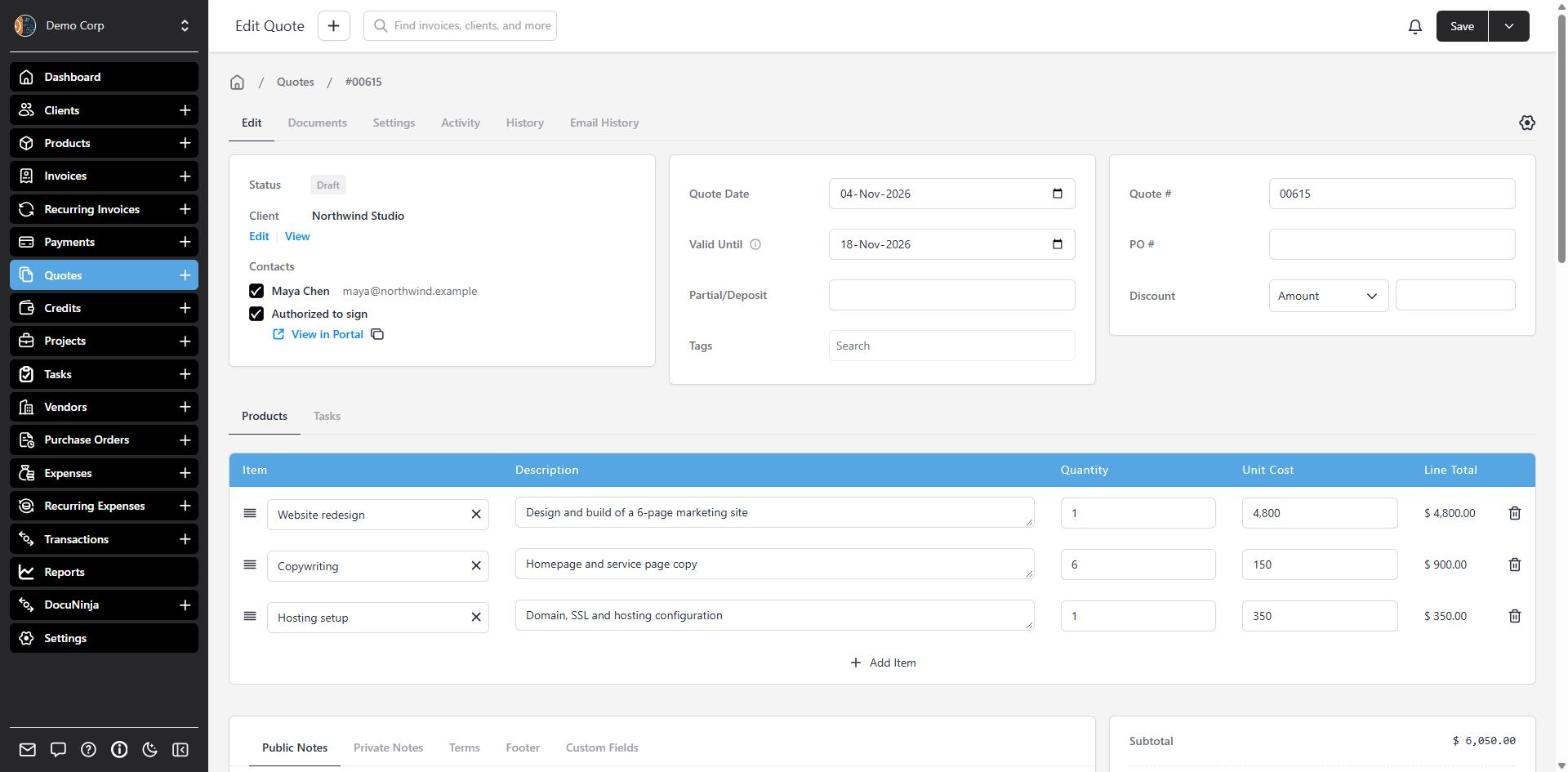
  1. Build the quote

    Build the quote

    Pick the client, add products or tracked time, and set a Valid Until date.

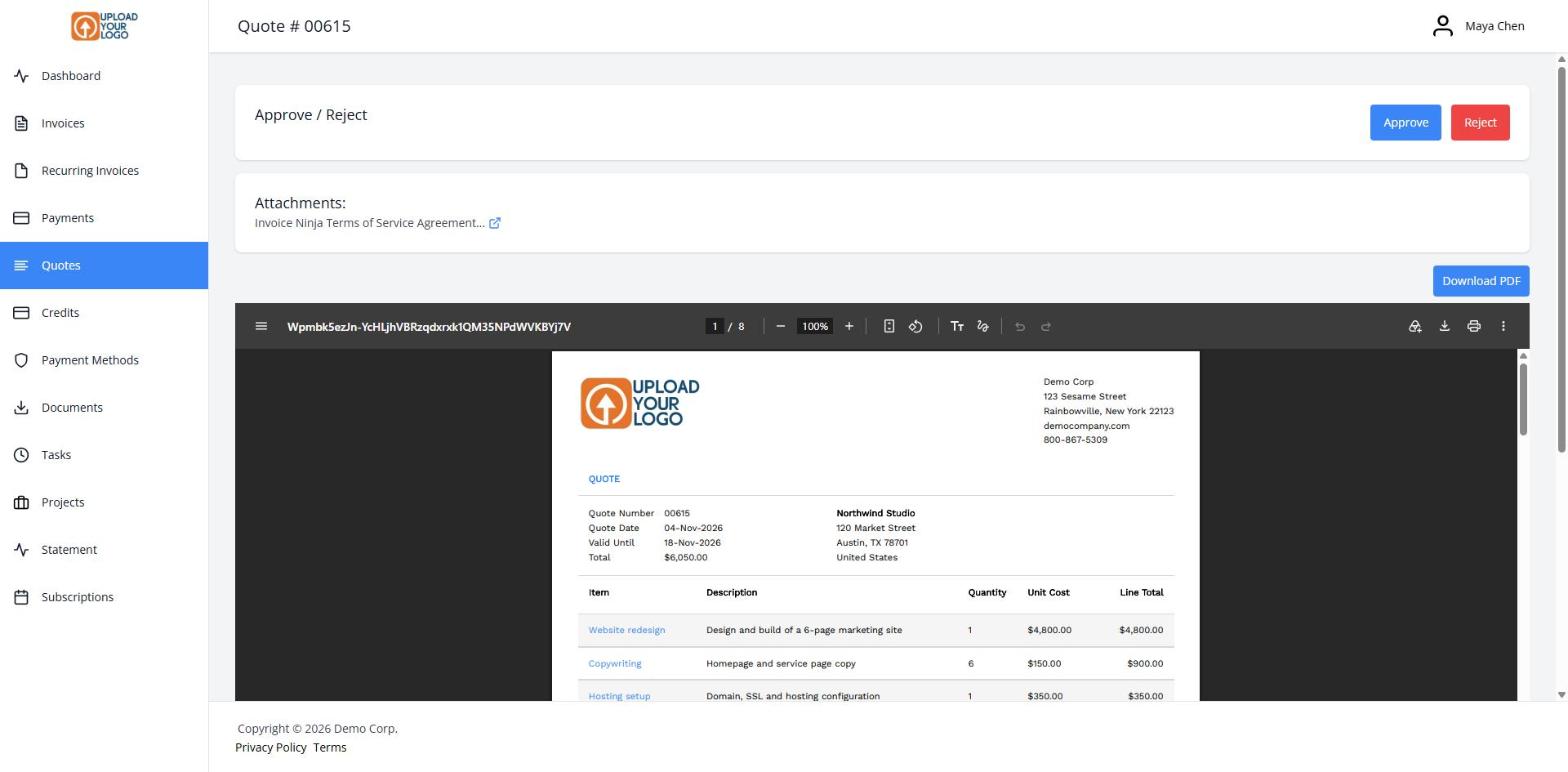
  2. Client approves online

    Client approves online

    Your client opens the quote in the client portal, reviews the PDF, and clicks Approve — or Reject.

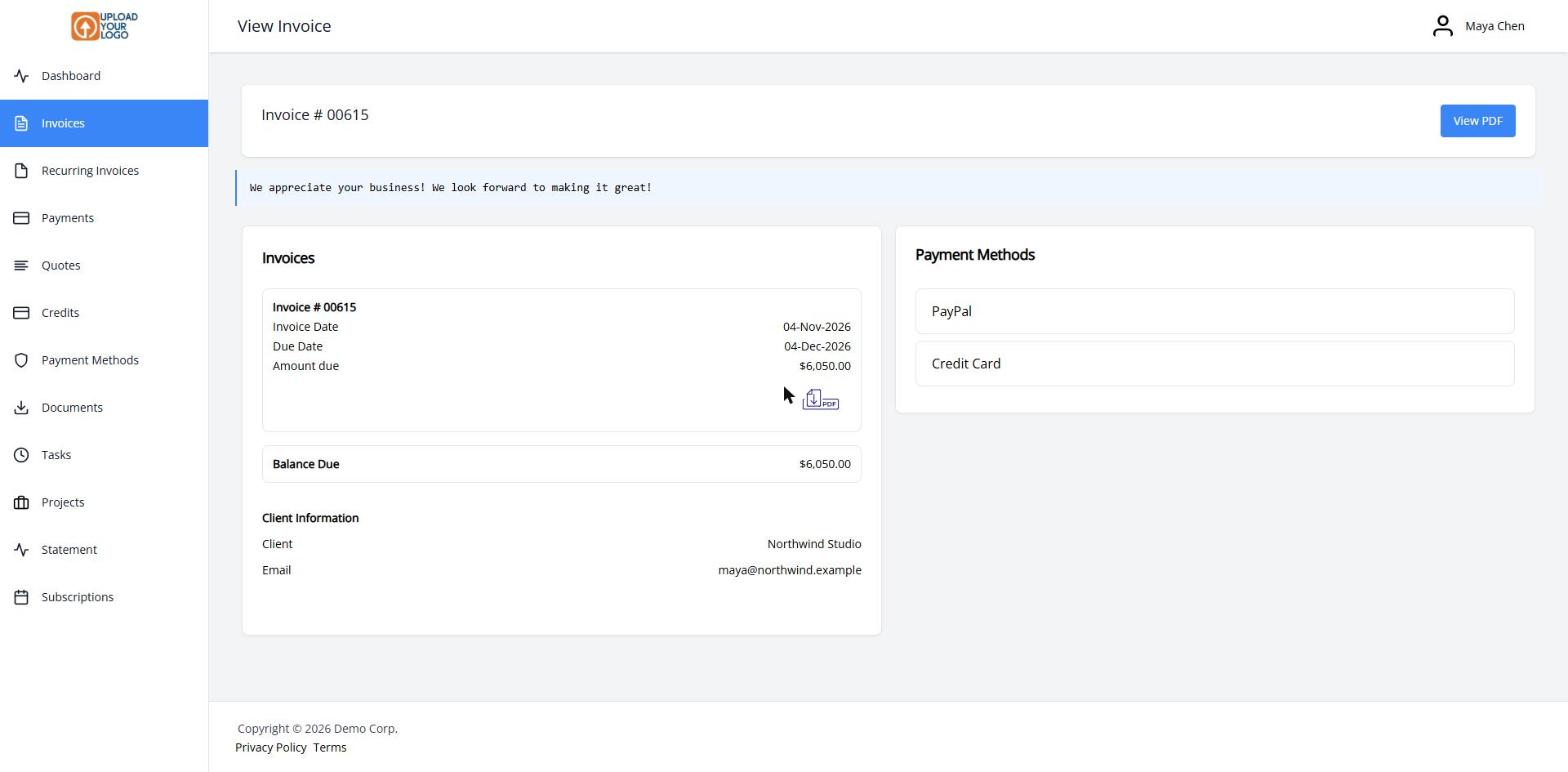
  3. It becomes an invoice

    It becomes an invoice

    With Automatically Convert on, the approved quote turns into an invoice the client can pay right away.

A quote your client can approve in one click

Quotes in Invoice Ninja work like invoices — same editor, same templates, same product library — but they don’t change the client’s balance until you convert them. Use a quote when someone needs to agree to the price before you start.

Set a Valid Until date so the offer has a clear end. Add a deposit if you need something upfront. Email the quote, and your client opens it in the client portal, reviews the PDF, and clicks Approve.

With Automatically Convert on (the default), an approved quote becomes an invoice the client can pay right away. You can also convert it yourself in one click, or turn it into a project and start tracking time.

Your logo and all 11 built-in templates are on every plan, including Free. Colors, fonts and design settings are on Pro and above — and quotes use the same design tools as invoices.

What you can do

  • Build quotes from your product library, tracked time or expenses
  • Set a Valid Until date and an optional deposit
  • Let clients approve or reject the quote in the client portal
  • Auto-convert an approved quote into a payable invoice
  • Convert a quote into a project and start tracking time

Who it’s for

Freelancers, agencies and contractors who send a price first and invoice once the work is agreed.

What you can do

  • Valid Until date

    Show clients exactly how long the price holds.

  • Ask for a deposit

    Add an upfront amount with the Partial/Deposit field.

  • Auto Convert

    Approved quotes become invoices instantly, and can be auto-archived.

  • Convert to a project

    Turn an approved quote into a project and start tracking time.

  • Optional quote signature

    Require a drawn signature in the portal before the client can approve.

Tip: Turn on Automatically Convert under Settings → Workflow Settings → Quotes.

Common questions

Do quotes use the same designs as invoices?

Yes. Quotes and purchase orders use the same templates, logo and design tools as invoices. Your logo and the 11 built-in templates are on every plan. Colors, fonts and design settings are on Pro and above.

How does a client approve a quote?

They open the quote from the email link, review it in the client portal, and click Approve. You can also mark a quote as approved yourself if they agreed by phone or in person.

Does an approved quote become an invoice automatically?

Yes, if Automatically Convert is on — it’s on by default under Settings → Workflow Settings → Quotes. You can turn it off and convert approved quotes yourself in one click.

Can I require a signature before approval?

Yes. In client portal authorization settings you can require a drawn signature, or a terms checkbox, before the client approves the quote. Clicking Approve is enough if you leave those options off.

Can I convert a quote into a project?

Yes. From the quote you can convert it to a project and start tracking tasks and time against the agreed work.

Is there a limit on the free plan?

The free plan covers unlimited quotes and invoices for up to 5 clients, including the client portal. Paid plans lift the client limit and add design customization, reminders, reports and more.

Ready to send your first invoice?

Join 200,000+ businesses invoicing with Invoice Ninja. Free to start, no credit card required.