


Auto Late-Payment Reminders

Set up first, second, third and endless reminder emails for unpaid invoices, and optionally add a late fee when a reminder goes out. Automatic reminders are included on Pro and Enterprise.

  • Pro & Enterprise
  • First, second, third, endless
  • Optional late fees
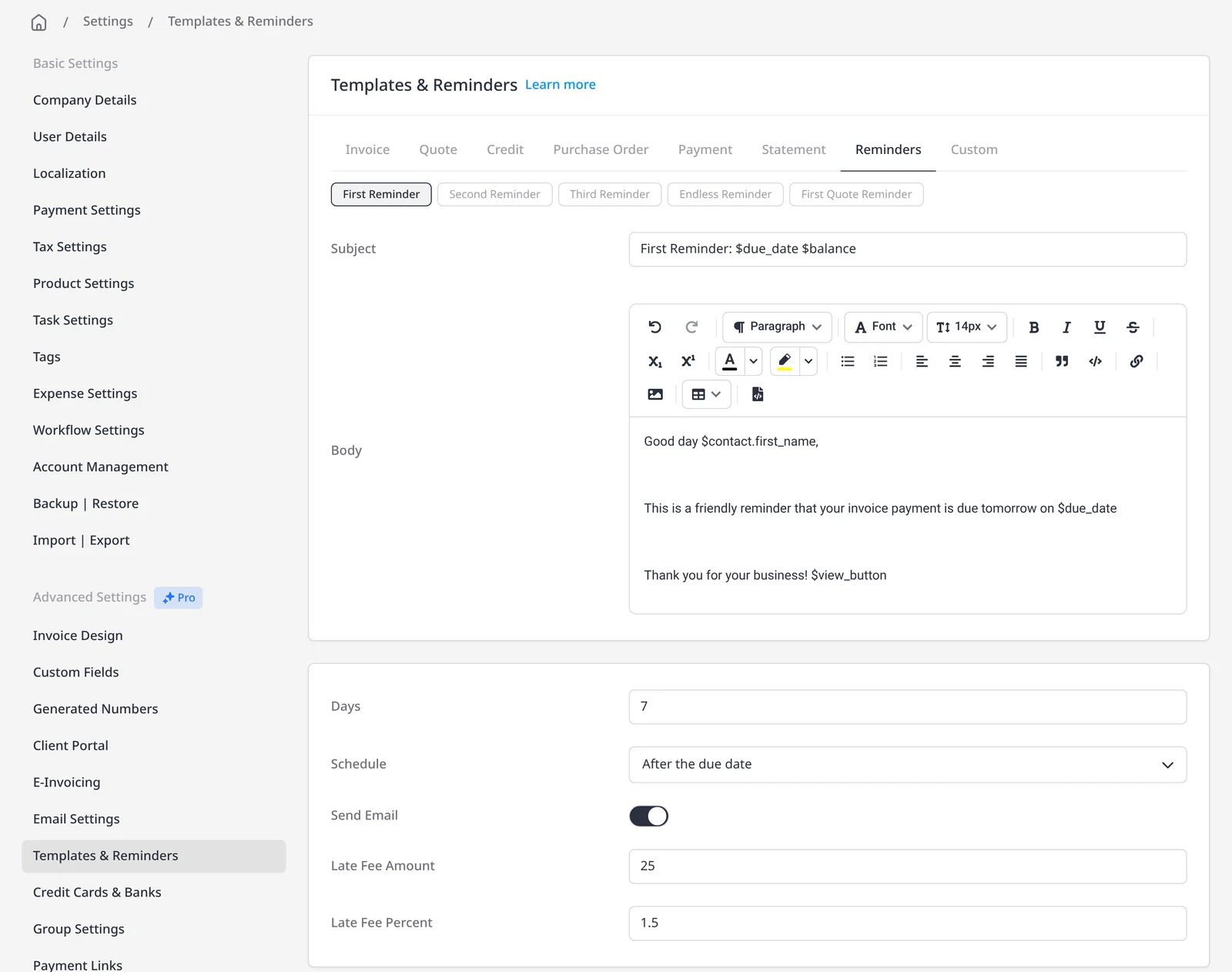
Invoice Ninja Templates and Reminders settings, with Reminder 1 open, including timing and a sample late fee

How it works

Schedule the follow-up, then let it run

  1. Invoice Ninja Templates and Reminders settings, with Reminder 1 open, including timing and a sample late fee

    Open Templates & Reminders

    On Pro or Enterprise, go to Settings → Templates & Reminders and choose Reminder 1, 2 or 3, or Endless Reminders.

  2. Reminder timing controls for days, schedule, and Send Email

    Set the timing and email

    Choose how many days, and whether that is after the invoice date, before the due date, or after the due date. Turn on Send Email.

  3. Optional late fee amount and percent fields on a reminder

    Optionally add a late fee

    Each of the first three reminders can add a flat amount, a percentage of the remaining balance, or both. Save, and enable Send Reminders on the client.

Stay on top of unpaid invoices without chasing them by hand

Automatic late-payment reminders email your client on a schedule you set, using a template you can edit. You can configure a first, second and third reminder, and then an endless reminder that keeps going at the frequency you choose. Automatic reminders are included on Pro ($14/mo) and Enterprise (from $18/mo). On every plan, including Free, you can also send a one-off reminder by hand and customize the message before you send it.

Set them up under Settings → Templates & Reminders. For each of the first three reminders, choose a number of days and a schedule: after the invoice date, before the due date, or after the due date. Turn on Send Email, and edit the subject and body like any other email template. Endless reminders start after the third reminder, on the frequency you set.

Each of the first three reminders can also add a late fee (a flat amount, a percentage of the remaining balance, or both) as a new line on the invoice. Late fees are optional and are configured on the same screen; this page is about the reminder emails first. Reminders only run for invoices when Send Reminders is enabled on that client, so you can leave it off for anyone with a special arrangement. An invoice is not treated as overdue, and overdue reminders and late fees will not run, until its due date has passed if you have set one.

What you can do

  • Schedule first, second, third and endless reminder emails on Pro and Enterprise
  • On every plan, including Free, send a one-off reminder by hand and customize the message before you send it
  • Time each reminder after the invoice date, before the due date, or after the due date
  • Edit the subject and body of each reminder template
  • Optionally add a flat late fee, a percentage of the remaining balance, or both
  • Turn Send Reminders on or off per client

Who it’s for

Freelancers and firms who want a consistent follow-up on unpaid invoices, without writing each reminder by hand, and who may also want a late fee when a reminder goes out.

What you can do

  • First, second and third Pro

    Set a different timing and template for each of the three reminder emails.

  • Endless reminders Pro

    After the third reminder, keep emailing on the frequency you set.

  • Flexible timing Pro

    Count days after the invoice date, before the due date, or after the due date.

  • Optional late fees Pro

    Add a flat amount, a percentage of the remaining balance, or both, on each of the first three reminders.

  • Per-client control Pro

    Reminders only run when Send Reminders is enabled on that client.

Tip: Configure reminders under Settings → Templates & Reminders. Enable Send Email on each reminder you want to send, and enable Send Reminders on the client.

Common questions

Are automatic reminders included on the free plan?

No. Automatic reminder schedules are included on Pro ($14/mo) and Enterprise (from $18/mo), under Settings → Templates & Reminders in Advanced Settings. On every plan, including Free, you can still send a one-off invoice reminder by hand and customize the message before you send it.

How many reminder emails can I schedule?

Three numbered reminders (first, second and third), plus an endless reminder that repeats after the third on a frequency you set. You choose the day offset and whether it is after the invoice date, before the due date, or after the due date.

Can I add a late fee when a reminder is sent?

Yes, optionally. On each of the first three reminders you can add a flat fee, a percentage of the remaining balance, or both. The fee is added as a new line on the invoice. Check the rules where you do business before you use late fees.

Will every overdue invoice get a reminder?

Only if Send Reminders is enabled on that client, Send Email is on for the reminder, and, if the invoice has a due date, that date has passed for overdue reminders and late fees. You can leave reminders off for a client with a special arrangement.

Can I change the wording of the reminder email?

Yes. Each reminder has its own subject and body under Settings → Templates & Reminders, with the same merge tags you use on other email templates.

Is this the same as late fees?

No. Reminders are the emails. Late fees are an optional extra on those emails, configured on the same screen. You can send reminders with no late fee, or add a fee when a reminder goes out.

Ready to send your first invoice?

Join 200,000+ businesses invoicing with Invoice Ninja. Free to start, no credit card required.