
Invoice and Payment Reports

Run reports on invoices, payments and more, then export a CSV, email it to yourself, or schedule it to send on a repeating basis. Reports are included on Pro and Enterprise.

  • On Pro and above
  • 28 report types
  • Export, email or schedule
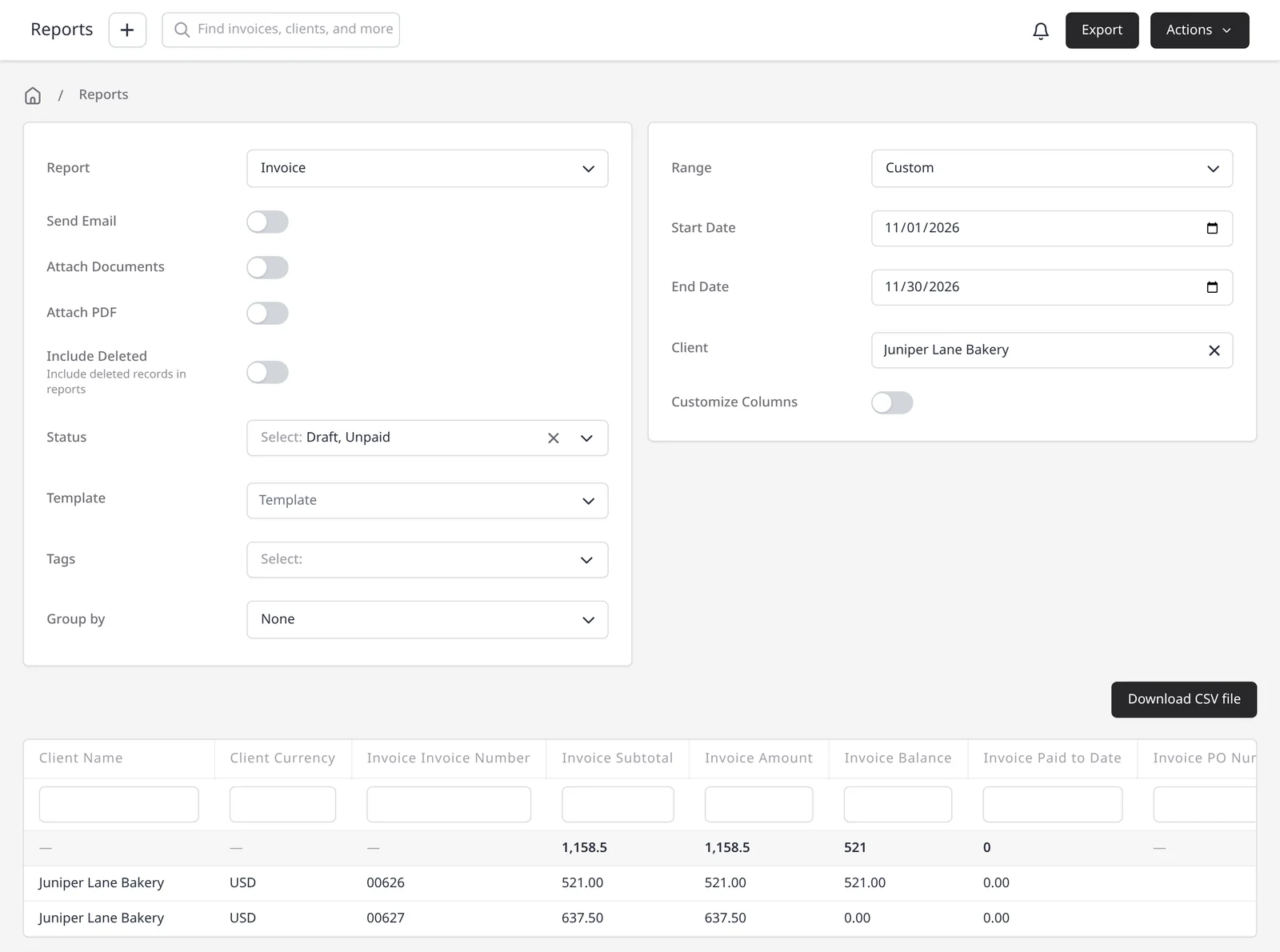
Invoice report in Invoice Ninja for Juniper Lane Bakery, with filters, an on-screen results table, and totals of 1,158.50

How it works

Run the report, then export, email or schedule it

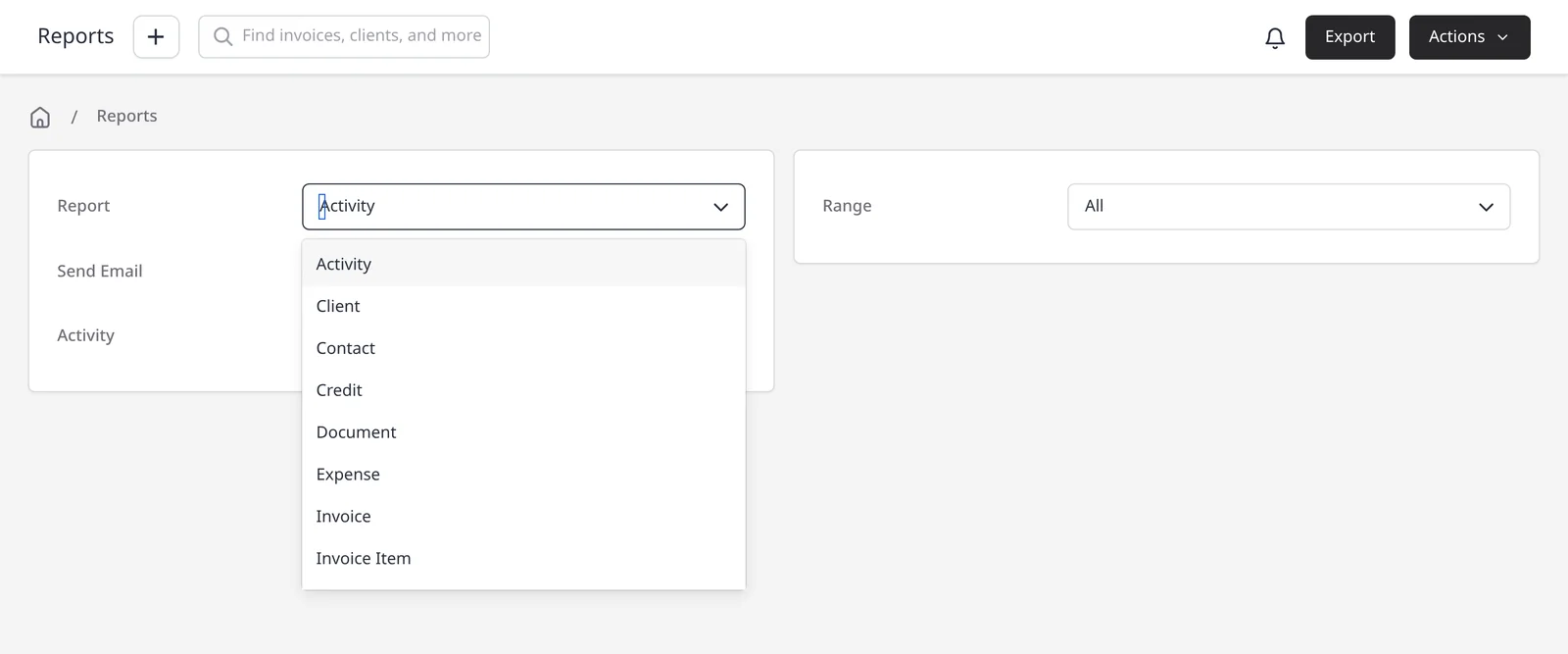
  1. Reports screen with the report type dropdown open, listing types such as Invoice and Invoice Item

    Pick a report type

    Open Reports and choose from 28 types, including Invoice, Payment, Invoice Item, Profit and Loss, and others such as quotes, expenses, tax and aged receivables.

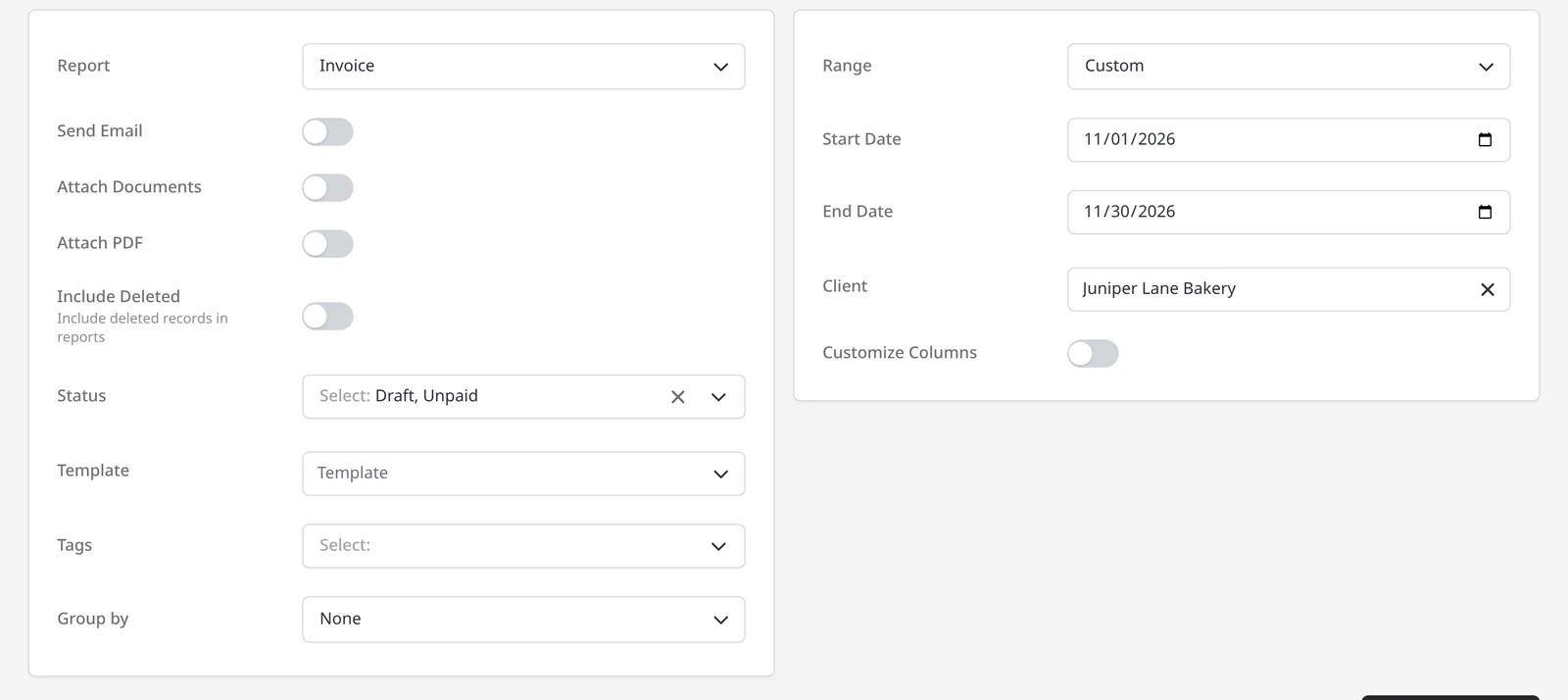
  2. Invoice report filters, including date range, status, client, group by, and include deleted

    Set the range and filters

    Use a date range preset or a custom range, and narrow by status, client, group by, customize columns, or include deleted, depending on the report.

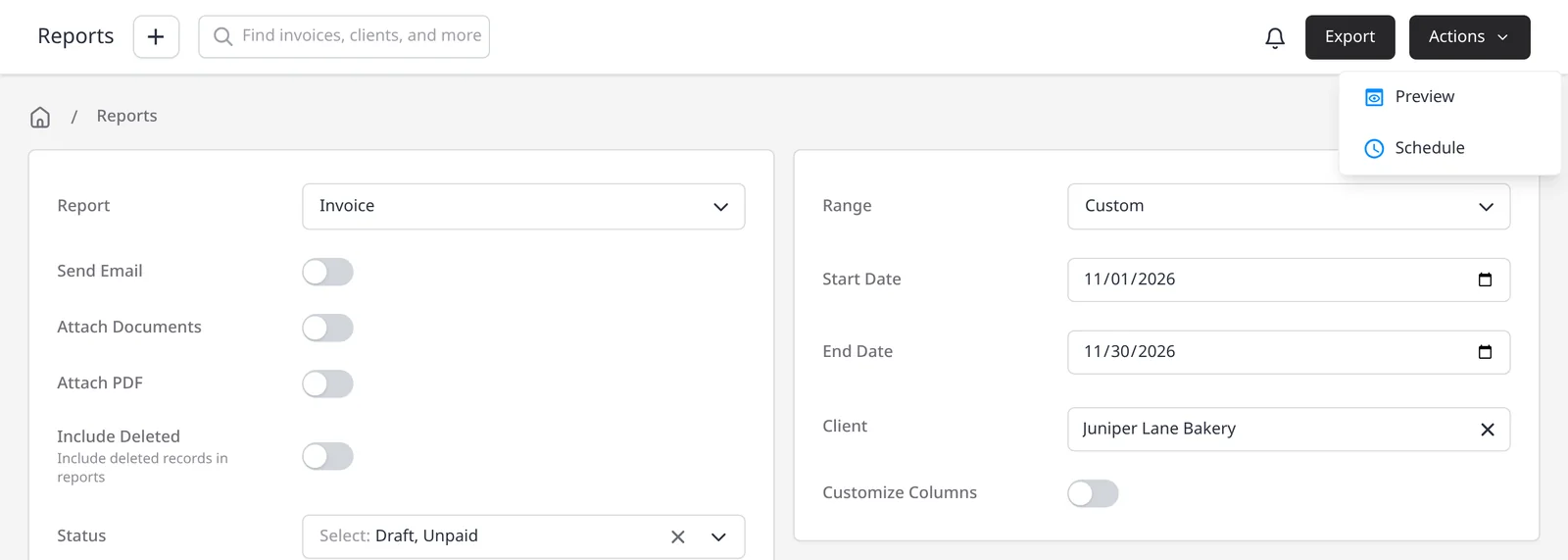
  3. Reports screen with Export in the header and the Actions menu open on Preview and Schedule

    Export, email or schedule

    Export downloads a CSV. Turn on Send Email to email the report to yourself when you run it, use Actions โ†’ Preview to see the results on screen, or use Actions โ†’ Schedule to send it on a repeating basis, from daily to every 3 years.

See what you billed, and what you collected

Reports turn the invoices and payments you already have into a list you can filter, export, email or schedule. Run an invoices report to see what you billed in a date range, or a payments report to see what actually came in. Reports, including invoices, payments and profit and loss, are included on Pro ($14/mo) and Enterprise (from $18/mo). Free plans do not have access to the reporting module.

The Reports module includes 28 types: Activity, Client, Contact, Credit, Document, Expense, Invoice, Invoice Item, Purchase Order, PO Item, Quote, Quote Item, Recurring Invoice, Recurring Invoice Item, Payment, Product, Product Sales, Task, Vendor, Profit and Loss, Aged Receivable Detailed, Aged Receivable Summary, Customer Balance, Customer Sales, Tax Summary, Tax Period, User Sales and Project. Profit and loss has its own feature page, and expense reports will too.

Every report exports as a CSV, and each one has a Send Email switch so you can email it to yourself when you run it. Use Actions โ†’ Preview to see the results on screen. Reports are not exported as a PDF. On credit, invoice, purchase order and quote reports, you can attach documents or PDFs when you email the report. Filters include a date range preset or a custom range, plus status, client, group by, customize columns and include deleted, depending on the report.

To send a report on a repeating basis, use Actions โ†’ Schedule. That opens a New Schedule with the Email Report template, where you set the range, next run, frequency (from daily to every 3 years) and remaining cycles. You can also start a schedule from Settings โ†’ Schedules. Other schedule templates include Email Statement, which is how client statements can be scheduled; that is a separate feature.

What you can do

  • Run any of 28 report types on Pro and Enterprise, including invoices, payments, invoice items and profit and loss
  • Filter by date range, status, client, group by, columns and include deleted, depending on the report
  • Export a CSV, or email the report to yourself when you run it
  • Schedule an Email Report to send on a repeating basis, from daily to every 3 years
  • Use client statements when you want a scheduled send for a client

Who it’s for

Owners and bookkeepers who want a clear list of what was billed and what was paid, and who want that report in a spreadsheet, in their inbox, or on a repeating schedule.

What you can do

  • Invoices and payments Pro

    See what you billed and what you collected, for any date range you choose.

  • 28 report types Pro

    Invoices, payments, invoice items, profit and loss, tax, aged receivables, and more, in one Reports module.

  • Filters and columns Pro

    Narrow by date range, status or client, group the rows, customize columns, or include deleted records.

  • Export or email a CSV Pro

    Every report exports as a CSV. Turn on Send Email to email it to yourself when you run it, or use Actions โ†’ Preview to see the results on screen.

  • Schedule a repeating send Pro

    Actions โ†’ Schedule creates an Email Report schedule, with a next run, frequency and remaining cycles.

Tip: Open Reports, pick a type, set the date range, then Export a CSV, turn on Send Email, use Actions โ†’ Preview, or use Actions โ†’ Schedule to send it on a repeating basis.

Common questions

Are invoice and payment reports included on the free plan?

No. All reporting access is on Pro ($14/mo) and Enterprise (from $18/mo) only. Free plans do not have access to the reporting module. You can still create invoices and record payments on every plan, including Free.

Which reports can I run?

The Reports module includes 28 types: Activity, Client, Contact, Credit, Document, Expense, Invoice, Invoice Item, Purchase Order, PO Item, Quote, Quote Item, Recurring Invoice, Recurring Invoice Item, Payment, Product, Product Sales, Task, Vendor, Profit and Loss, Aged Receivable Detailed, Aged Receivable Summary, Customer Balance, Customer Sales, Tax Summary, Tax Period, User Sales and Project. Profit and loss has its own feature page, and expense reports will too.

Can I export a report?

Yes. Every report exports as a CSV. You can also turn on Send Email to email it to yourself when you run it, use Actions โ†’ Preview to see the results on screen, or use Actions โ†’ Schedule to send it on a repeating basis. Reports are not exported as a PDF. On credit, invoice, purchase order and quote reports, you can attach documents or PDFs when you email the report.

Can I schedule a report?

Yes. In Reports, open Actions โ†’ Schedule. That creates a New Schedule with the Email Report template, where you set the range, next run, frequency (from daily to every 3 years) and remaining cycles. You can also start a schedule from Settings โ†’ Schedules. Client statements can be scheduled too, using the Email Statement template; that is a separate feature.

Can I preview a report on screen?

Yes. In Reports, open Actions โ†’ Preview to see the results on screen. You can also export a CSV, email the report to yourself, or schedule it to send on a repeating basis.

Can I filter by client or date range?

Yes. Filters include a date range preset or a custom range, plus status, client, group by, customize columns and include deleted, depending on the report.

Is this the same as invoice history in the client portal?

No. These are reports you run in Invoice Ninja for your own books. The client portal has a separate invoice and payment history view for each client.

Ready to send your first invoice?

Join 200,000+ businesses invoicing with Invoice Ninja. Free to start, no credit card required.