Client Statements

Send clients a statement of their invoices and payments, or let them download one in the portal for any date range. You can also schedule statements from Settings, then Schedules, with the Email Statement template. Client statements, including scheduling, are included on every plan, including Free.

  • Included on every plan
  • Download in the portal
  • Schedule Email Statement
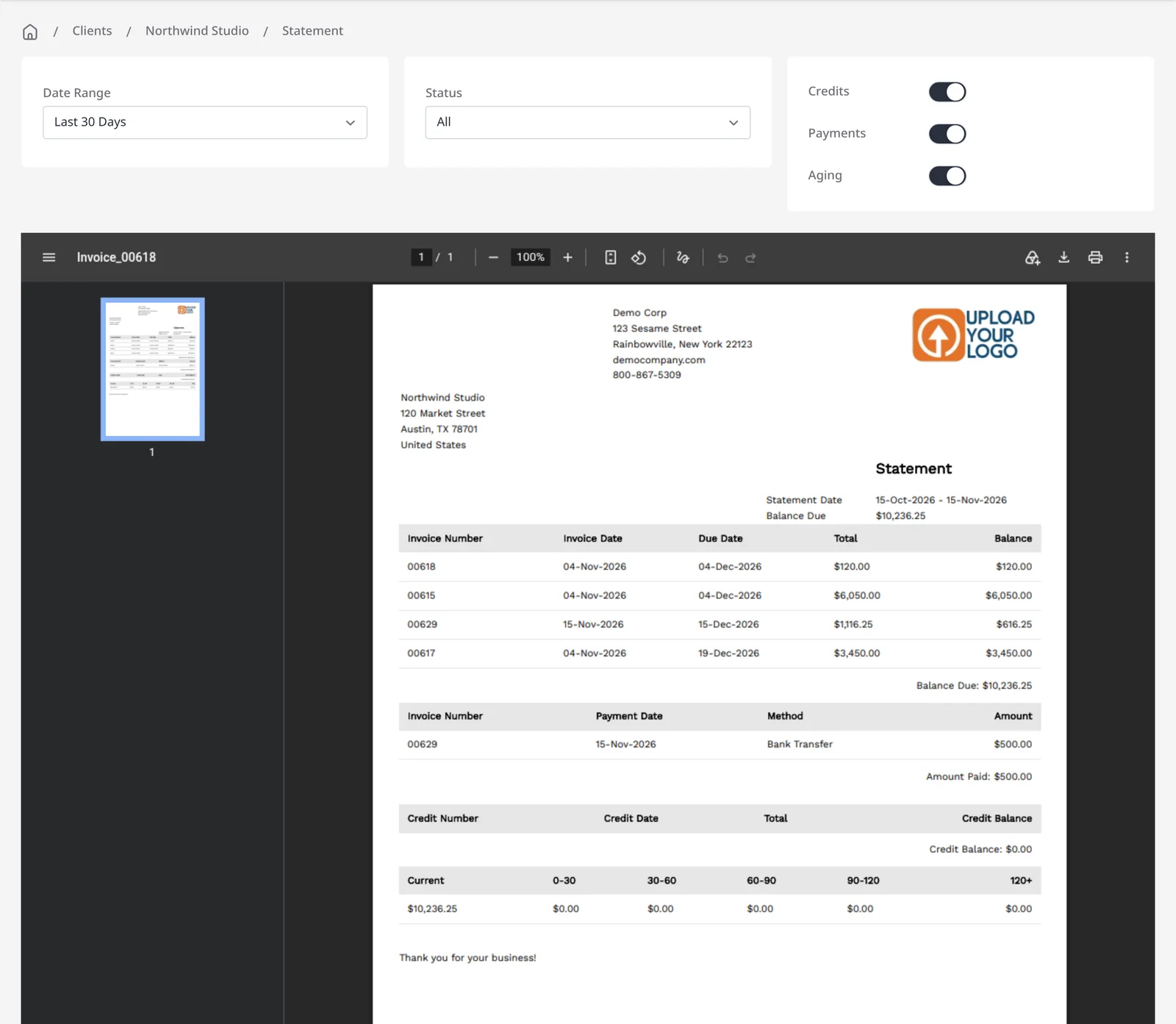
Invoice Ninja statement for Northwind Studio, with a date range, status, and a PDF showing invoices, a payment and the balance due

How it works

Share a clear picture of what is owed

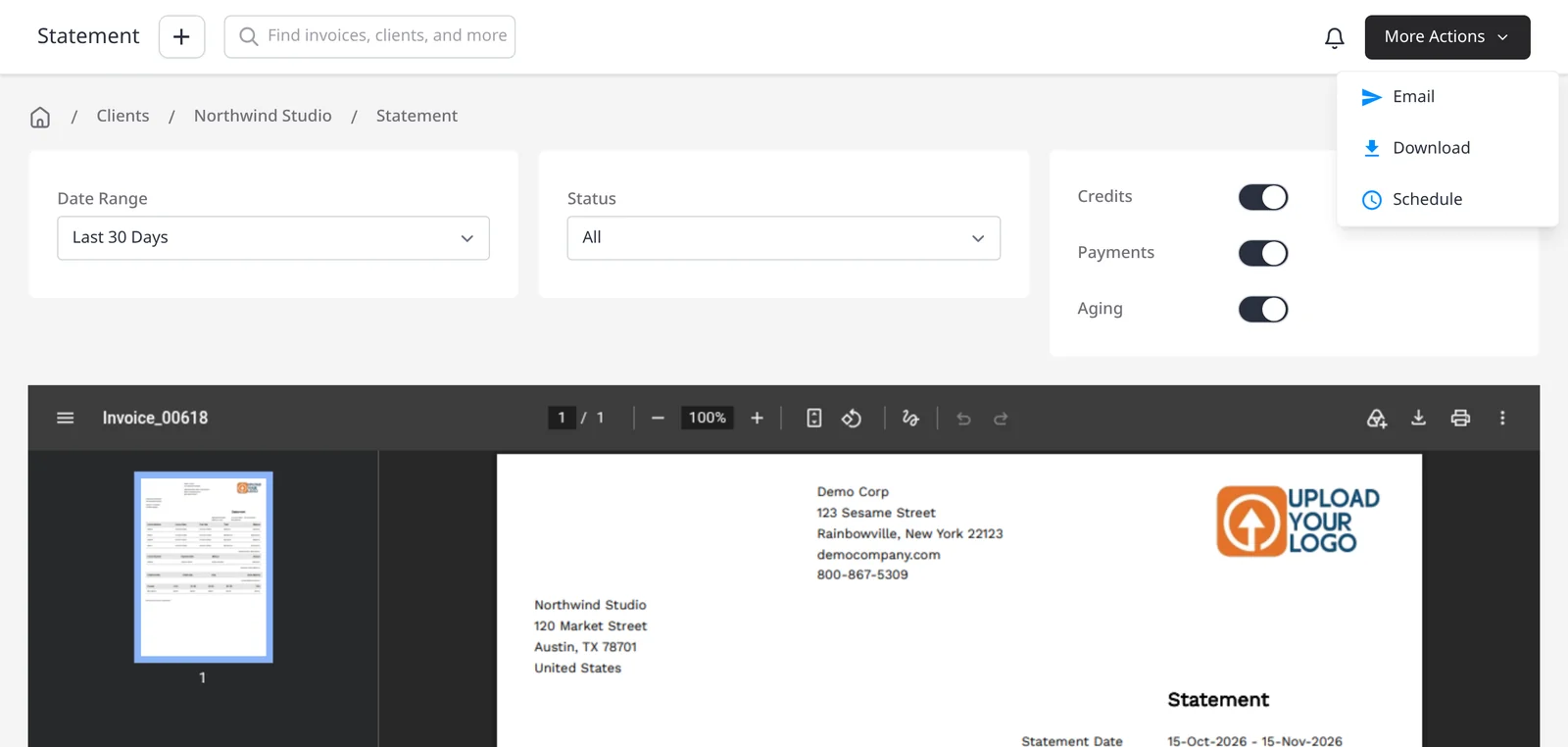
  1. View Statement for Northwind Studio, with Date Range, Status, and More Actions showing Email, Download and Schedule

    Open View Statement on the client

    On the client page, open Edit, then View Statement. Choose a date range and status, and turn on Credits, Payments or Aging if you want those included.

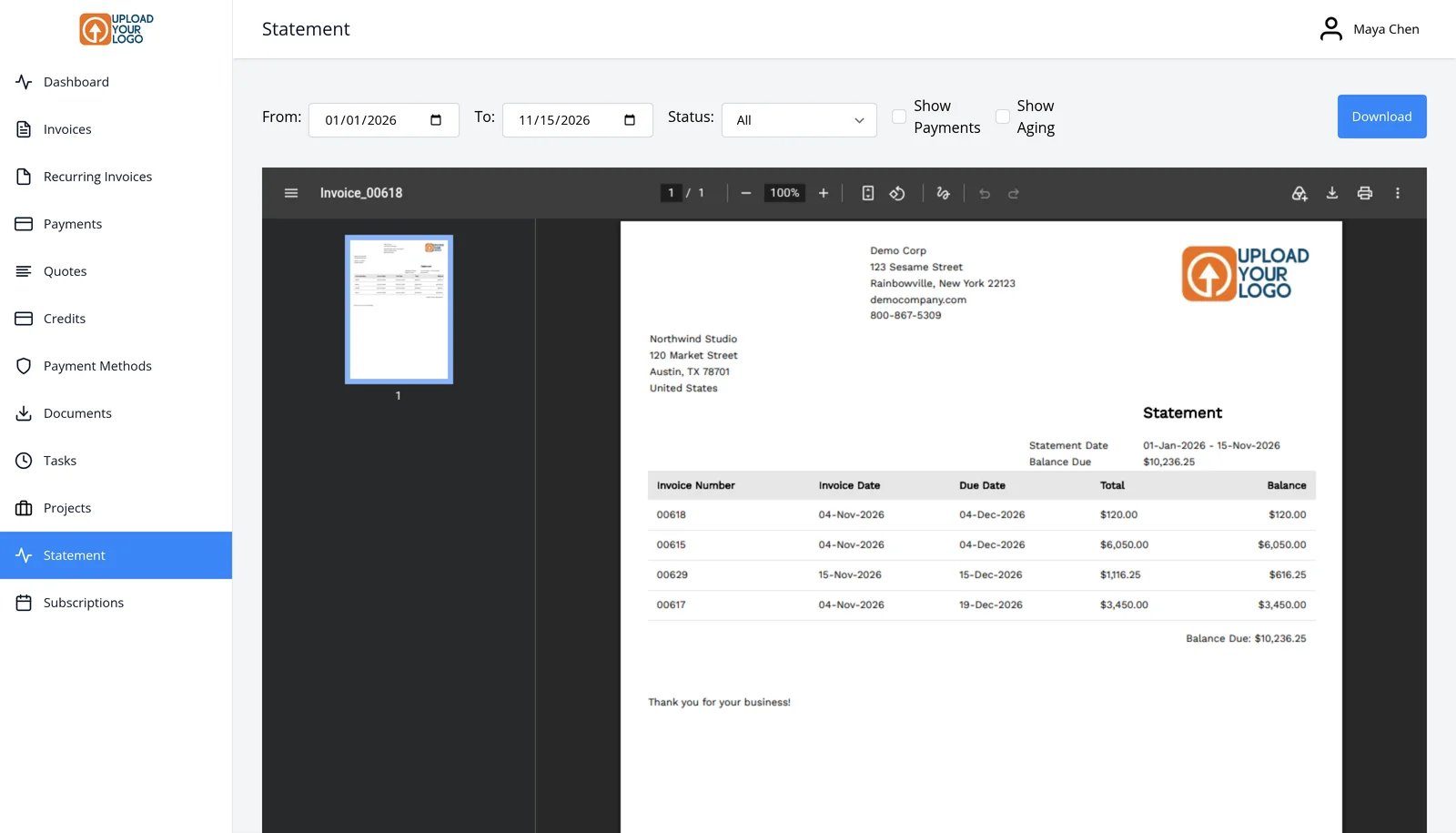
  2. Client portal Statement tab for Maya Chen, with From and To dates, Status, Show Payments, Show Aging and Download

    Email it, download it, or let the client do it

    Use More Actions to Email or Download the statement. Or let the client open the Statement tab in the portal, set From and To, and Download a PDF.

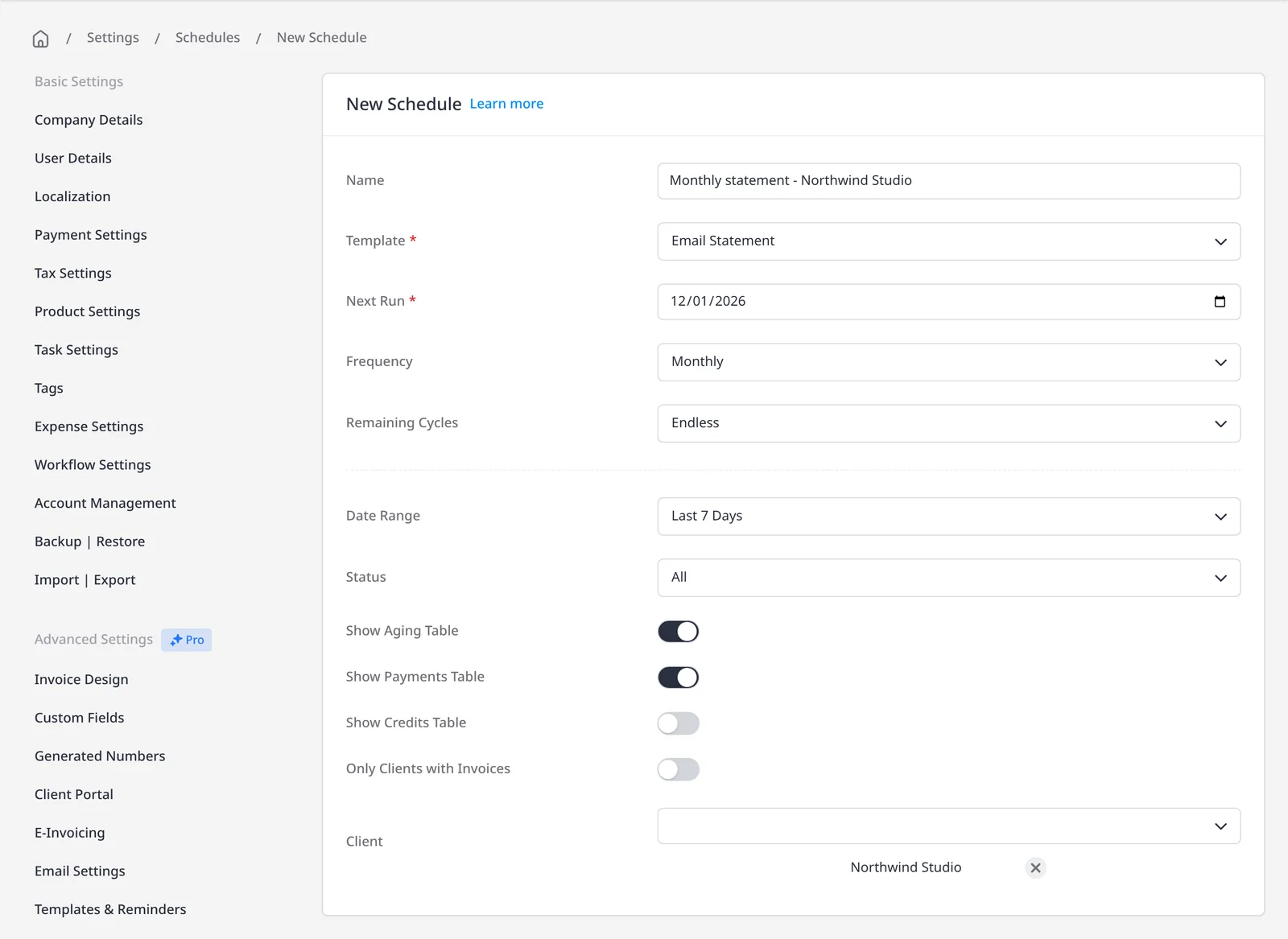
  3. New Schedule in Invoice Ninja, with the Email Statement template, Monthly frequency and Northwind Studio selected

    Schedule it to go out automatically

    In Settings, then Schedules, choose New Schedule and the Email Statement template. Set the frequency (Monthly is the default), remaining cycles, date range and which clients should receive it.

A running record your clients can use

A client statement sums up invoices and payments, so someone can see the current balance, recent activity and payment history without asking you to pull it together by hand. Clients can generate a PDF statement for any date range in the client portal. Portal download, emailing a statement and scheduling statements are included on every plan, including Free.

When you want to send the statement yourself, open the client, choose Edit, then View Statement, and use More Actions to Email or Download it. You can include credits, payments and an aging table. If you would rather it go out on a regular cadence, open Settings, then Schedules, and choose New Schedule with the Email Statement template. Set the frequency (Monthly is the default), remaining cycles and date range, and choose which clients should receive it. The statement is a client-facing summary, not the same thing as the Reports module, which is included on Pro and Enterprise.

What you can do

  • Let clients download a statement PDF in the portal for any date range, on every plan including Free
  • Generate a statement from the client page (Edit, then View Statement) and email or download it, on every plan including Free
  • Schedule Email Statement from Settings, then Schedules, on every plan including Free, and choose the frequency and which clients receive it
  • Give clients a clear view of balances, payments, credits and aging

Who it’s for

Owners who get asked for a year-end or month-end statement, and anyone who wants clients to pull that summary themselves in the portal, or receive it on a schedule.

What you can do

  • Download in the portal

    Clients can generate a PDF statement for any date range in the client portal, on every plan including Free.

  • Email a statement

    From View Statement, use More Actions to Email or Download a copy of invoices, payments and the current balance.

  • Schedule Email Statement

    From Settings, then Schedules, choose the Email Statement template, set the frequency (Monthly is the default) and pick which clients should receive it. Included on every plan, including Free.

  • Balances and history

    Include credits, payments and an aging table, so the statement shows the current balance and what is outstanding.

  • Separate from reports

    A statement is a client-facing summary. The Reports module, on Pro and Enterprise, is for your own account data.

Tip: Use View Statement when a client needs a copy now, and the portal when they want to download one themselves. Use a schedule when you want statements to go out on a regular cadence.

Common questions

Can clients download a statement themselves?

Yes. In the client portal, the Statement tab lets the client set From and To dates, choose a status, and Download a PDF. They can also show payments and aging. The portal is included on every plan, including Free.

Can I schedule client statements?

Yes. Scheduling statements is included on every plan, including Free. Go to Settings, then Schedules, and choose New Schedule with the Email Statement template. Set the frequency (Monthly is the default), remaining cycles, date range and status, and choose which clients should receive the statement. You can also start a schedule from More Actions on View Statement.

Is this the same as invoice and payment reports?

No. A statement is a client-facing summary of invoices, payments and the current balance. Reports are for your own account data, are included on Pro and Enterprise, and live in the Reports module.

What does a statement include?

A statement summarizes invoices and payments. You can include credits, payments and an aging table, so the client sees the current balance and what is outstanding.

Do I have to schedule statements?

No. You can email or download a statement from View Statement when you need to, and clients can download one in the portal whenever they want. Scheduling is there when you want that send to repeat.

Ready to send your first invoice?

Join 200,000+ businesses invoicing with Invoice Ninja. Free to start, no credit card required.