Dashboard

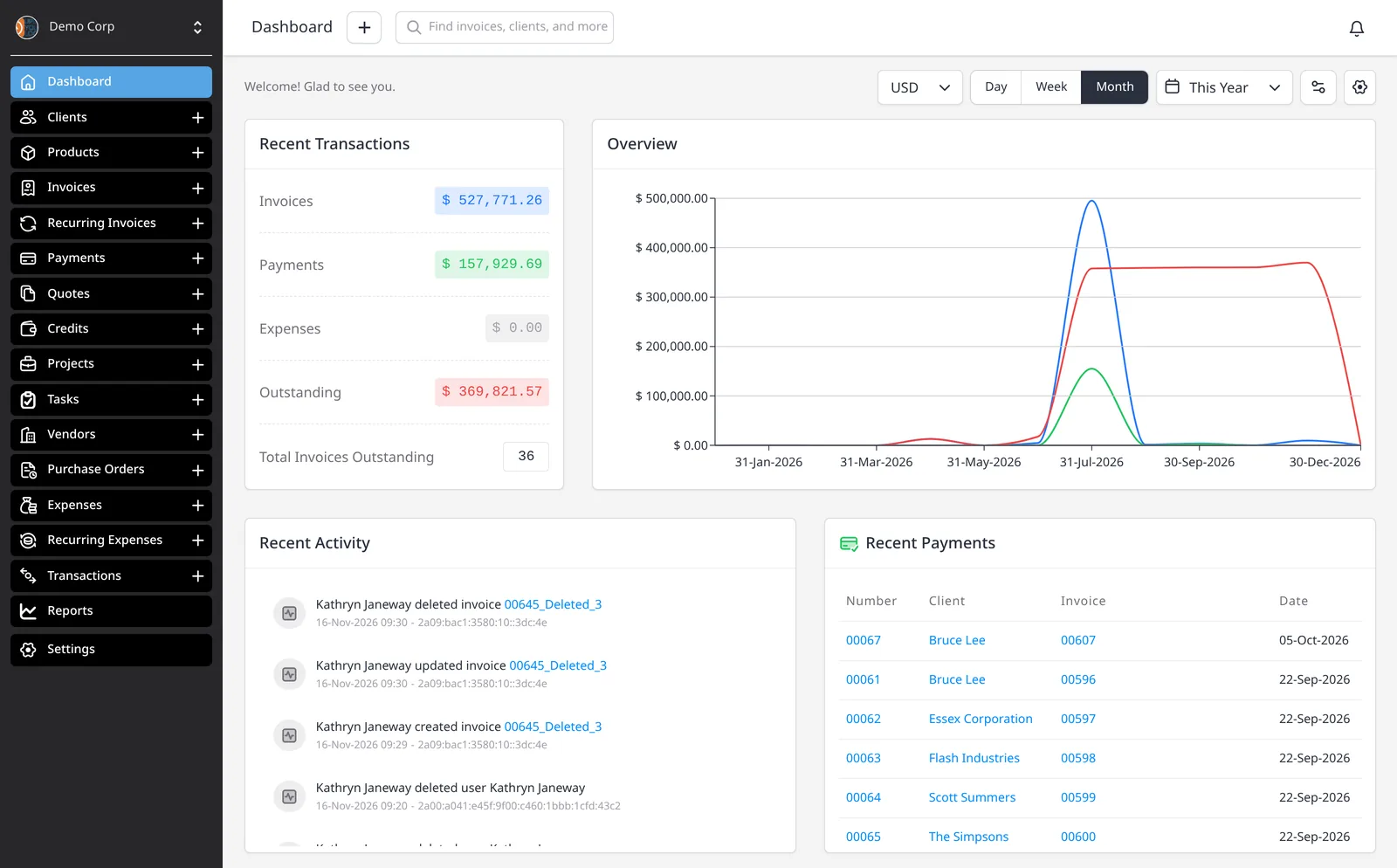
Your dashboard is the homepage of your admin account. See Recent Activity, Recent Payments, upcoming and past due invoices, and the Overview chart you can filter. Included on every plan, including Free.

  • Included on every plan
  • Your account homepage
  • Filter the Overview chart
Invoice Ninja admin Dashboard with Recent Transactions, an Overview chart for This Year, Recent Activity and Recent Payments, plus currency, Day, Week, Month and This Year filters

How it works

See what's due, and what just happened

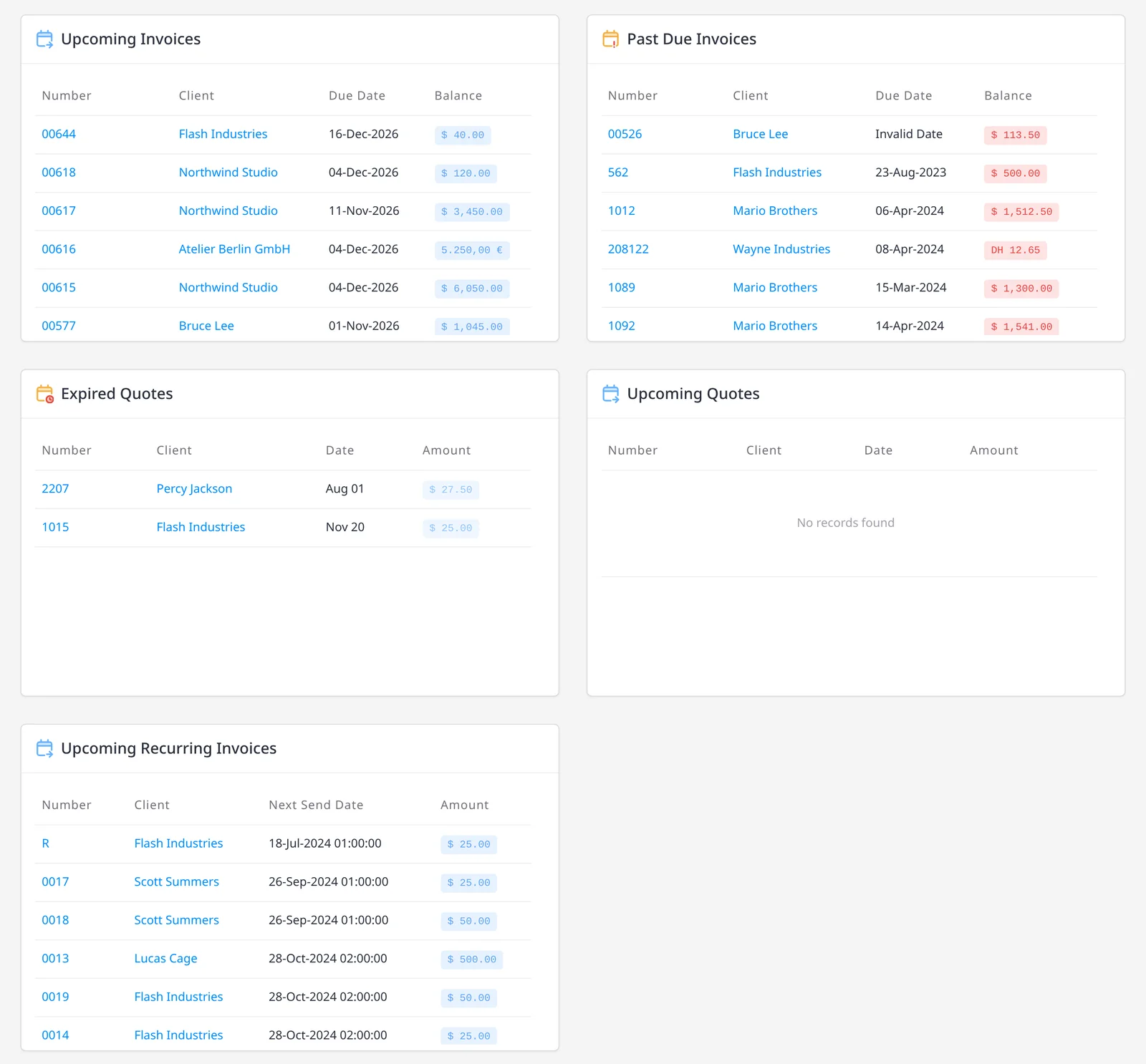
  1. Dashboard cards for Upcoming Invoices, Past Due Invoices, Expired Quotes, Upcoming Quotes and Upcoming Recurring Invoices. Upcoming Quotes shows no records

    Open your dashboard

    When you sign in, you land on the dashboard. It is the homepage of your admin account, on every plan including Free.

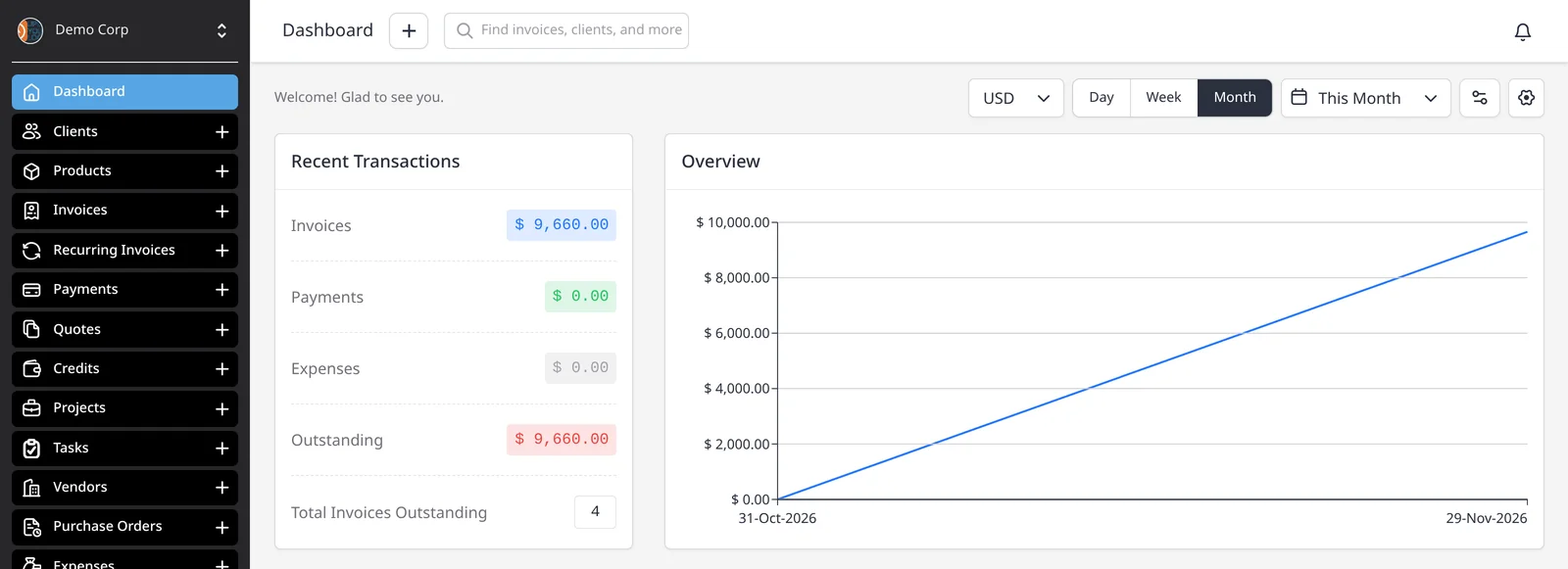
  2. Overview chart and Recent Transactions on the Invoice Ninja dashboard, with USD, Month and This Month selected

    Scan the boxes and the Overview chart

    The page can show Recent Activity, Recent Payments, Upcoming Invoices, Past Due Invoices, Expired Quotes, Upcoming Quotes, Upcoming Recurring Invoices and Recent Transactions, alongside the Overview chart.

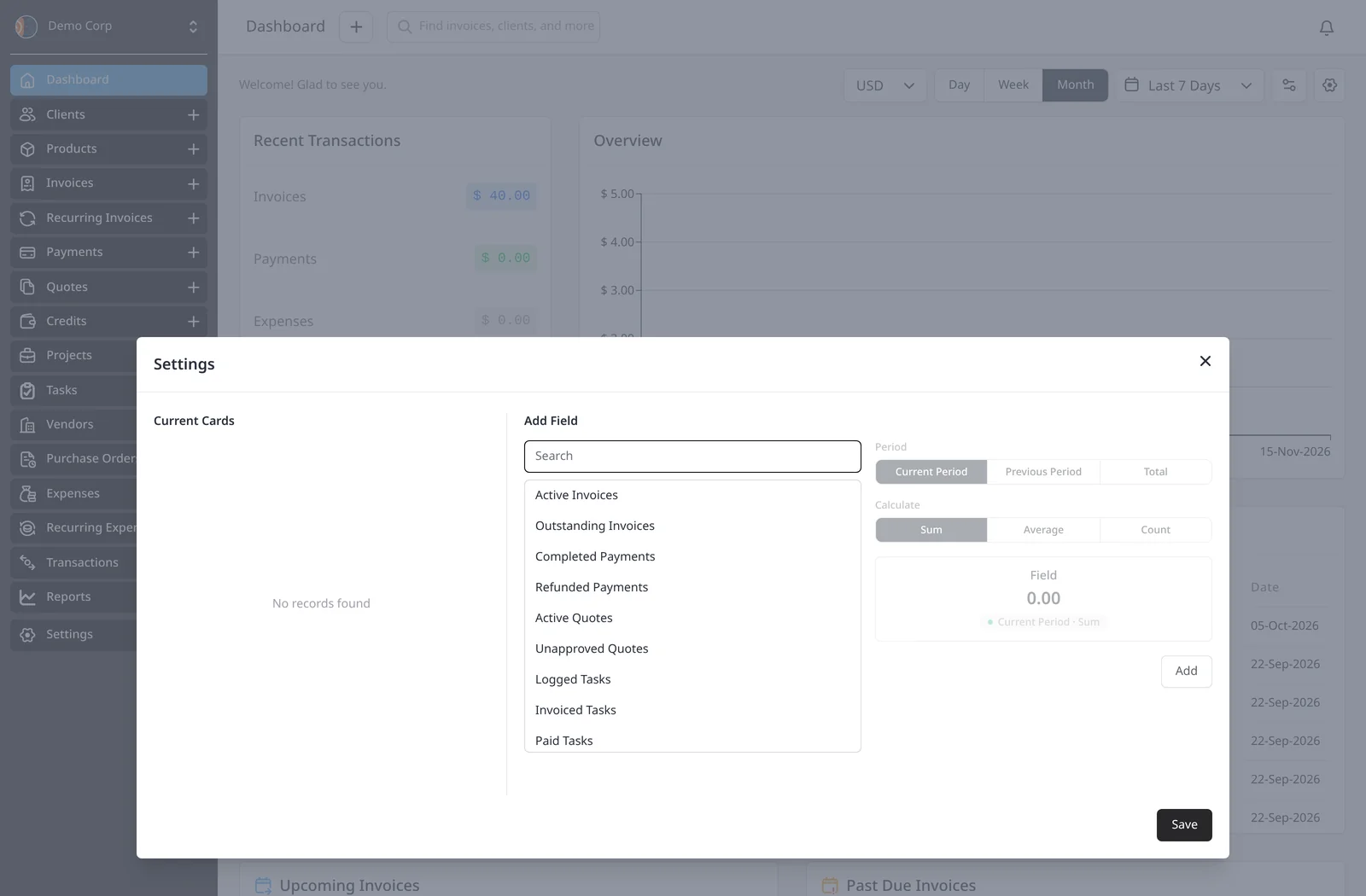
  3. Dashboard Settings dialog, opened from the sliders icon, showing Current Cards and Add Field, with fields such as Active Invoices and Outstanding Invoices

    Filter, or add fields

    Filter the Overview chart and the Recent Transactions box by currency, by Day, Week or Month, and by a date range such as Last 7 Days or This Month. Open Settings from the sliders icon to add fields. The Settings dialog has Current Cards and Add Field.

Your account homepage, at a glance

The dashboard is the first screen you see when you sign in. It brings Recent Activity, Recent Payments, Upcoming Invoices, Past Due Invoices, Expired Quotes, Upcoming Quotes and Upcoming Recurring Invoices onto one homepage, with an Overview chart of the period you choose, plus Recent Transactions. The dashboard is included on every plan, including Free.

The Overview chart and the Recent Transactions box both follow the filters you set. Switch the currency, choose Day, Week or Month, or pick a date range such as Last 7 Days or This Month, and those figures update. Open Settings from the sliders icon in the toolbar (to the left of the gear) to add fields, such as Active Invoices or Outstanding Invoices. The Settings dialog has Current Cards and Add Field.

For a filtered list you can export, email or schedule, see Reports, which are included on Pro and Enterprise.

What you can do

  • Land on your dashboard every time you sign in, on every plan including Free
  • See Recent Activity, Recent Payments, Upcoming Invoices, Past Due Invoices, Expired Quotes, Upcoming Quotes, Upcoming Recurring Invoices and Recent Transactions
  • Filter the Overview chart and Recent Transactions by currency, by Day, Week or Month, and by a date range such as Last 7 Days or This Month
  • Open Settings from the sliders icon to add fields, using Current Cards and Add Field

Who it’s for

Anyone who wants a quick view of what’s due and what just happened, without running a report first.

What you can do

  • Your account homepage

    The dashboard is waiting when you sign in, on every plan including Free.

  • The boxes that matter

    Recent Activity, Recent Payments, Upcoming Invoices, Past Due Invoices, Expired Quotes, Upcoming Quotes, Upcoming Recurring Invoices and Recent Transactions.

  • An Overview chart you can filter

    The Overview chart and Recent Transactions update when you change the currency, Day, Week, Month, or the date range.

  • Add fields in Settings

    Open Settings from the sliders icon to add fields. The dialog has Current Cards and Add Field.

Tip: Set the date range to Last 7 Days or This Month when you want a tighter view. Use Reports when you need a CSV you can email or schedule.

Common questions

Is the dashboard included on the free plan?

Yes. Every user, on every plan including Free, has access to their dashboard, which is the homepage of their admin account.

Can I change what appears on the dashboard?

Yes. Open Settings from the sliders icon in the toolbar. The Settings dialog has Current Cards and Add Field, so you can add fields such as Active Invoices or Outstanding Invoices.

Do the chart and transactions follow the same filters?

Yes. The Overview chart and the Recent Transactions box both update when you filter by currency, by Day, Week or Month, and by a date range such as Last 7 Days or This Month.

When should I use Reports instead?

Use the dashboard for a quick look at what’s due and what just happened. Use Reports when you want one of the 28 report types as a CSV you can email or schedule. Reports are included on Pro and Enterprise.

Ready to send your first invoice?

Join 200,000+ businesses invoicing with Invoice Ninja. Free to start, no credit card required.

This site is registered on wpml.org as a development site. Switch to a production site key to remove this banner.