
Bulk Email Invoices

Select a batch of invoices and use Actions, then Send Email, instead of opening each one. Bulk email is included on Pro and Enterprise. You can still email a single invoice on every plan, including Free.

  • On Pro and above
  • Email a batch in one step
  • Single-invoice email on every plan
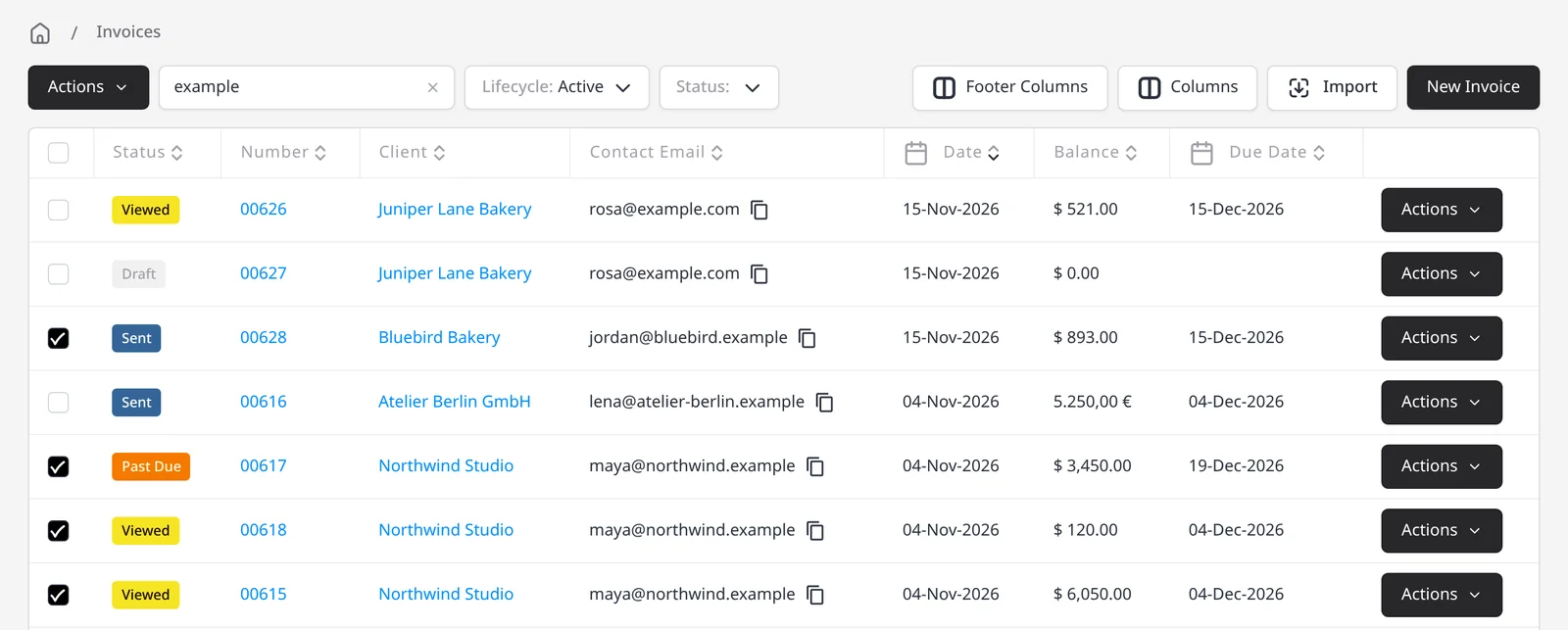
Invoices list with invoices for Bluebird Bakery and Northwind Studio selected, and the Actions menu visible

How it works

Select the invoices, then send them together

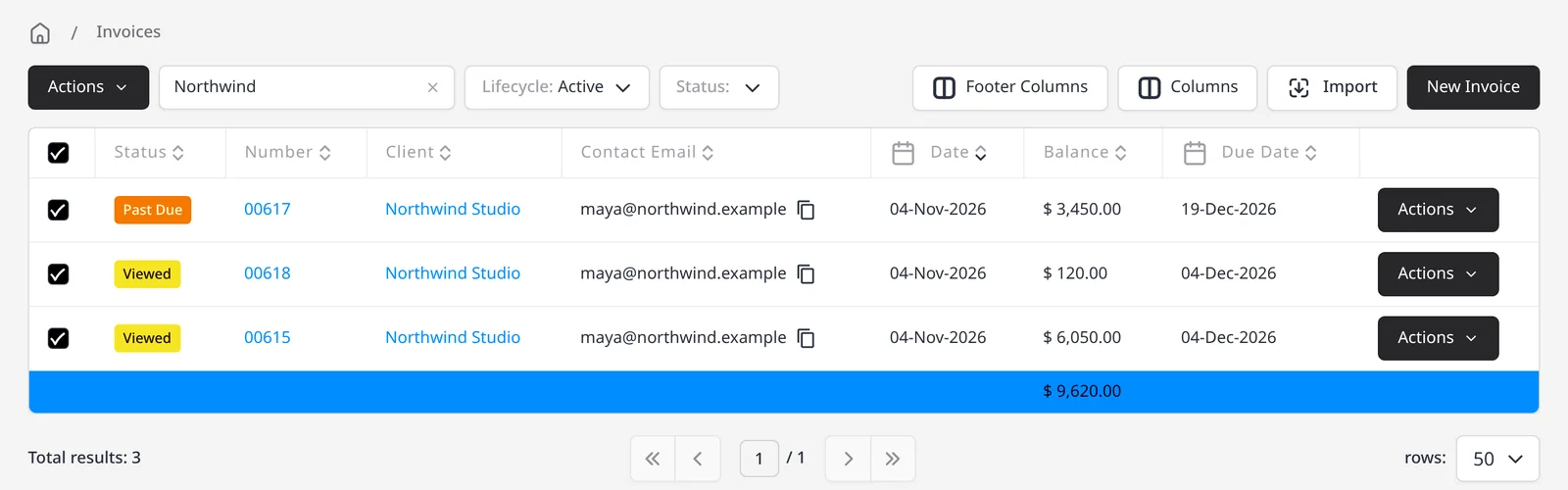
  1. Invoices list filtered to Northwind Studio, with three invoices selected

    Filter and select the invoices

    In the invoices list, find the invoices you want to send (for example drafts that are ready, or a set for the same period), then select them.

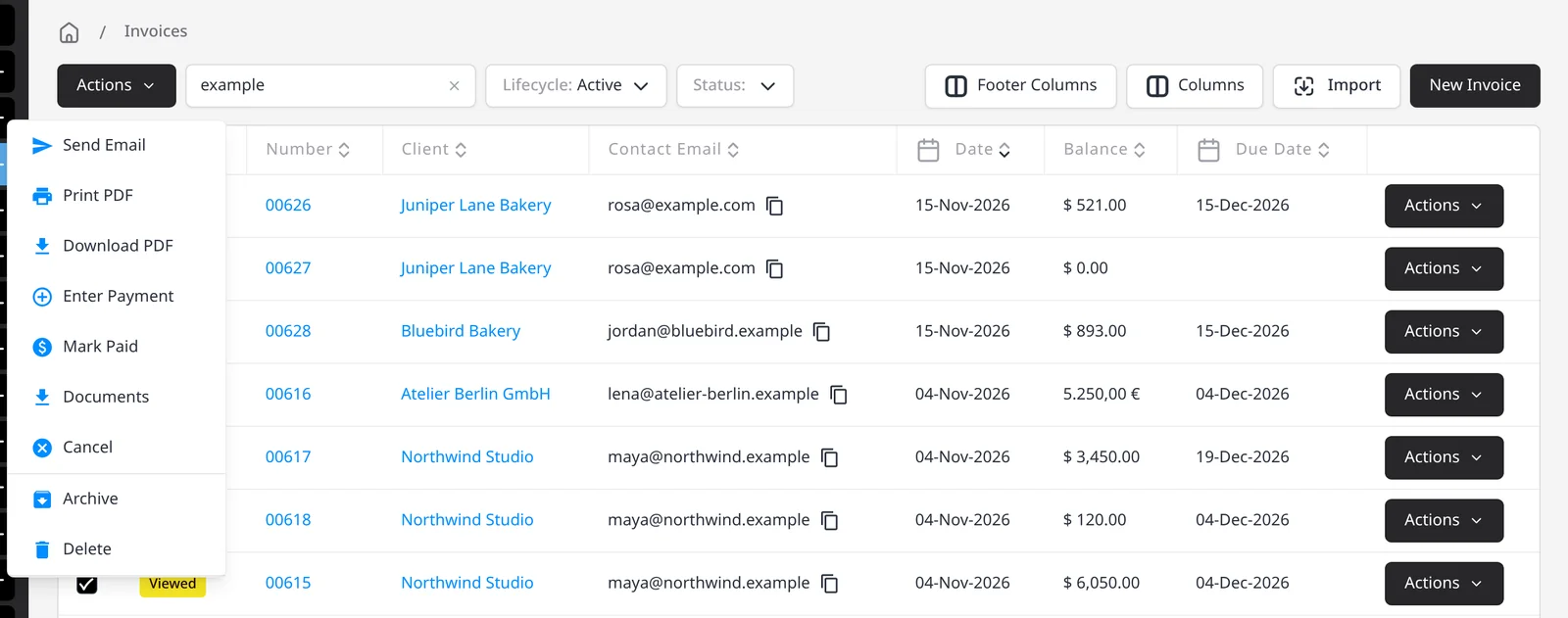
  2. Invoices list Actions menu, with Send Email at the top of the bulk actions

    Send Email on the batch

    Open Actions, then Send Email, to send those invoices in one step, on Pro and Enterprise.

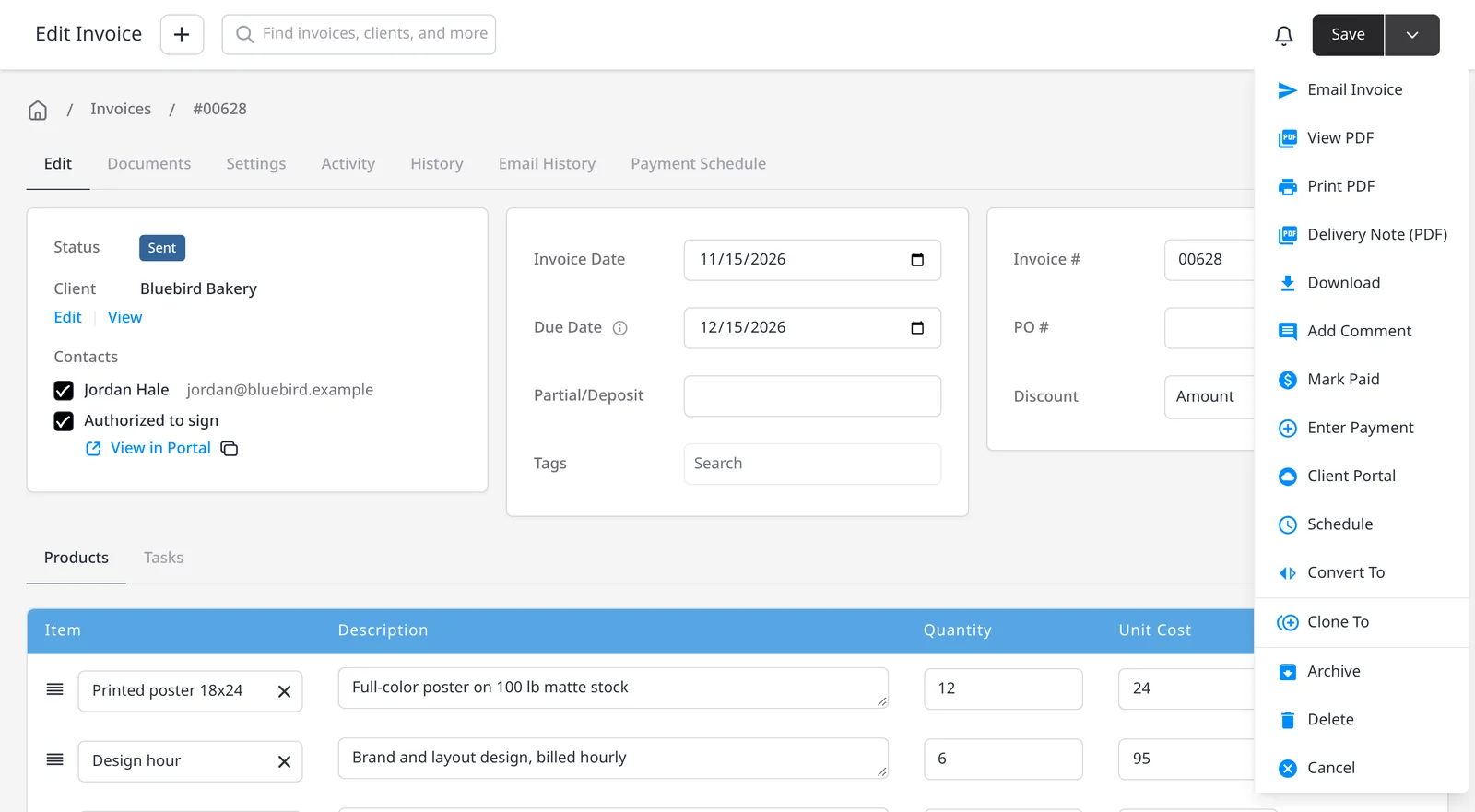
  3. Edit Invoice screen for Bluebird Bakery, with Email Invoice at the top of the actions menu

    Or email just one

    To send a single invoice, use Email Invoice from that invoice's actions. That path is included on every plan, including Free.

Send a batch of invoices without opening each one

When several invoices are ready at once, select them in the invoices list and use Actions, then Send Email, to send the batch in one step. Bulk email is included on Pro ($14/mo) and Enterprise (from $18/mo).

You can still email a single invoice with Email Invoice from that invoice’s actions on every plan, including Free. If you want those emails to come from your own Gmail or Microsoft address, see Gmail and Microsoft email.

What you can do

  • Select a group of invoices and send them with Actions, then Send Email, on Pro and Enterprise
  • Filter the invoices list first, so you are only sending the ones that are ready
  • Email a single invoice with Email Invoice from that invoice’s actions on every plan, including Free
  • Optionally send from your own Gmail or Microsoft account on Pro and Enterprise

Who it’s for

Businesses that raise many invoices at once (for example at the end of the month) and want to send them without opening each record.

What you can do

  • Email a batch Pro

    Select multiple invoices, then use Actions, then Send Email, on Pro and Enterprise.

  • Filter, then select Pro

    Narrow the invoices list first, so the batch you send is the set that is actually ready.

  • Email one invoice anytime

    Email Invoice on a single record is included on every plan, including Free.

  • Send from your own address Pro

    On Pro and Enterprise, you can also send through your Gmail or Microsoft account.

Tip: Filter the invoices list first (for example by status or date), then select the batch and use Actions, then Send Email. To send just one, use Email Invoice on that record.

Common questions

Is bulk email included on the free plan?

No. Emailing a batch of invoices with Actions, then Send Email, is included on Pro and Enterprise. You can still use Email Invoice on a single invoice on every plan, including Free.

Do I have to use bulk email?

No. If you only need to send one invoice, use Email Invoice from that invoice’s actions.

Can I send invoices from my own email address?

Yes, on Pro and Enterprise you can connect Gmail or a Microsoft account and send from that address. See the Gmail and Microsoft email page for that setup.

Can I email quotes or purchase orders in a batch too?

This page is about invoicing. Check the quotes or purchase orders list in the app for the same kind of bulk action if you need it there.

Is this the same as scheduled reminders?

No. Bulk email sends the invoices you select now. Automated reminder schedules are a separate Pro and Enterprise feature. You can still send a one-off reminder on every plan.

Ready to send your first invoice?

Join 200,000+ businesses invoicing with Invoice Ninja. Free to start, no credit card required.

This site is registered on wpml.org as a development site. Switch to a production site key to remove this banner.