Purchase Orders

Create a purchase order for a vendor, email it, and track it from draft to accepted and received. Approved purchase orders can auto-convert to expenses. Purchase orders and expenses are included on every plan, including Free.

  • Included on every plan
  • Email the vendor
  • Convert to an expense
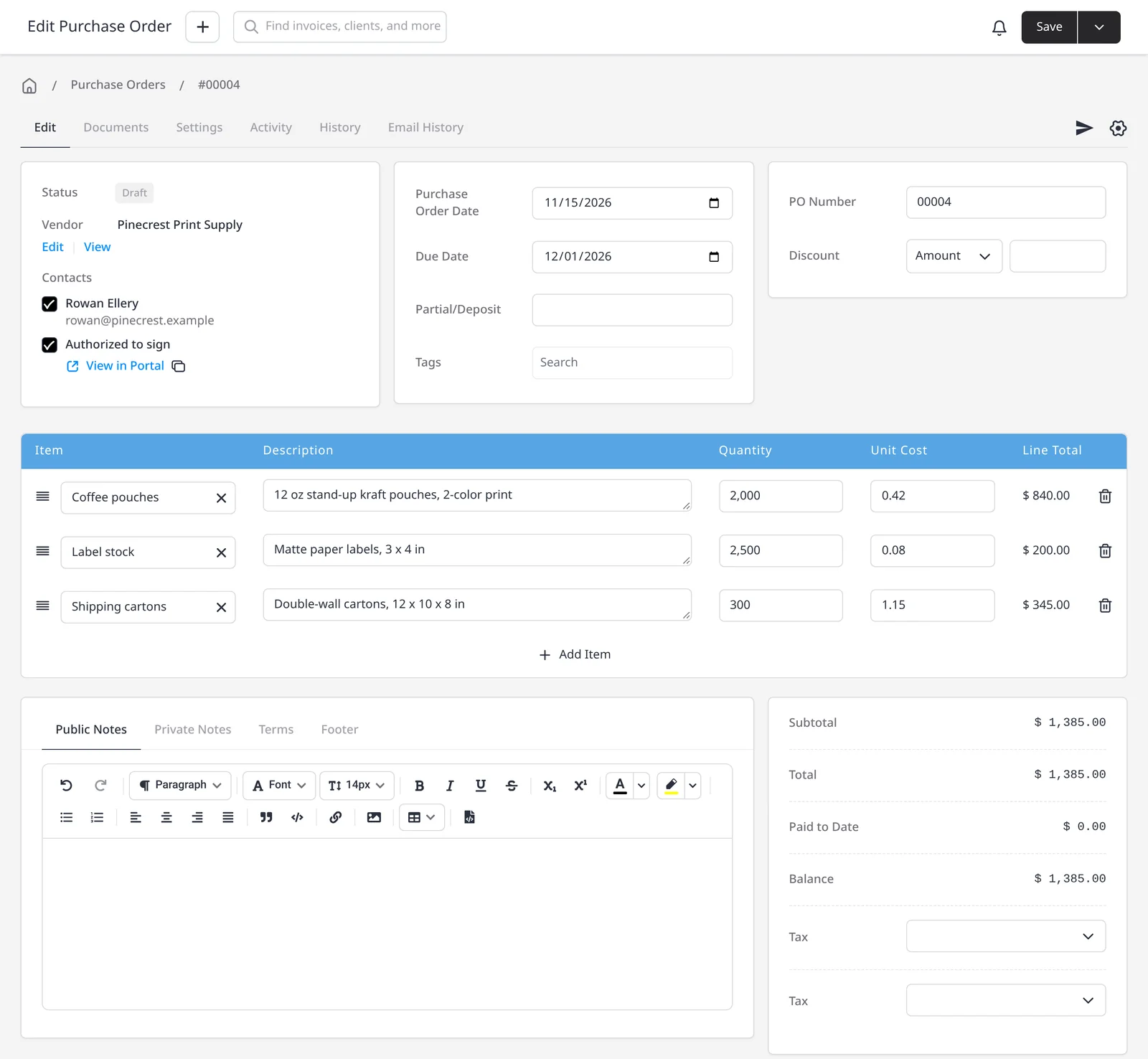
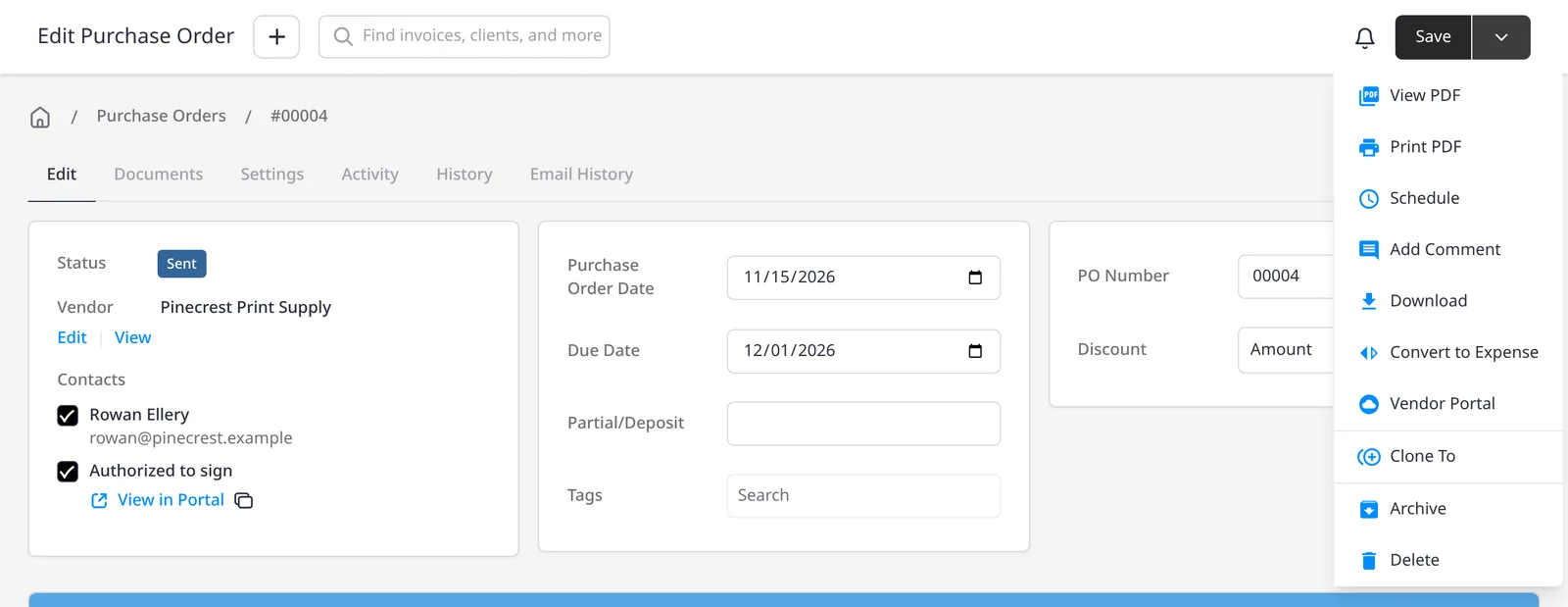
Purchase order editor in Invoice Ninja for vendor Pinecrest Print Supply, totaling 1,385 dollars

How it works

From purchase order to expense

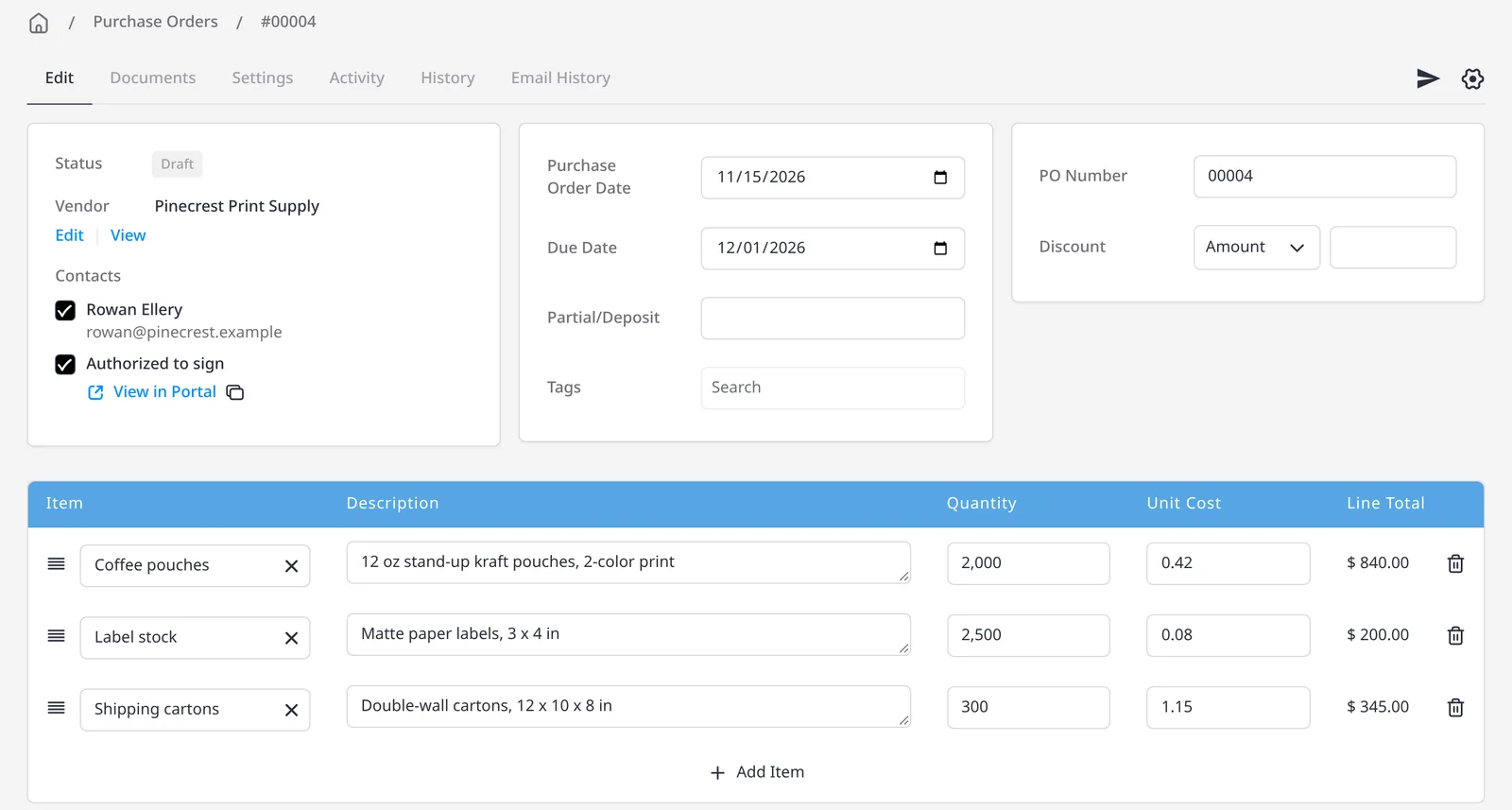
  1. New purchase order with a vendor and line items filled in

    Create the purchase order

    Open Purchase Orders, choose a vendor, and add the items, quantities and prices. Link a client or project if the cost will be billed back later.

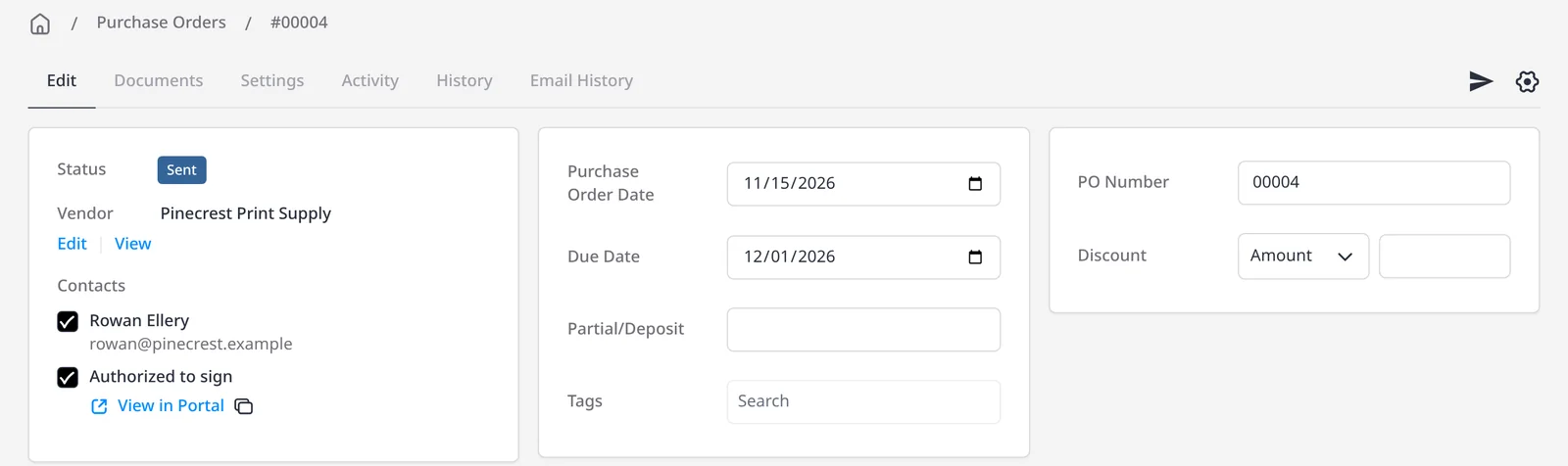
  2. Purchase order marked sent in Invoice Ninja

    Send it, then track it

    Email the PO or mark it sent. Your vendor can accept it in the vendor portal. When the goods or services arrive, mark the PO received.

  3. Convert to Expense action on an approved purchase order

    Auto-convert to an expense

    Approved purchase orders can auto-convert to expenses. The expense keeps the vendor, amount and any client or project link.

Order from a vendor with the same care you use on invoices

A purchase order is the other side of an invoice: you send it to a vendor to request goods or services at an agreed price. Once it is accepted, you have a written record of what you ordered and what you expect to pay. You will need a vendor on file. You can add one first, or create one while you raise the PO. Purchase orders and expenses are included on every plan, including Free.

Fill in the vendor, date, optional due date, and line items from your product library or typed in. You can set terms, public notes the vendor will see, and private notes they will not. Optionally link a client or project when the purchase is on a client’s behalf and will later be billed back. Then email the PO, or mark it sent if you delivered it another way. After a PO has been emailed or marked sent, it cannot be moved back to draft.

The vendor can accept the PO in the vendor portal, including optional terms and a signature. When the goods or services arrive, mark the PO as received, and if inventory tracking is on, stock for matching products is increased automatically. Approved purchase orders can auto-convert to expenses. The expense inherits the vendor, amount, line detail, and any client or project link, so you can mark it paid or flag it as billable without retyping. See also expense tracking and inventory management.

What you can do

  • Create a purchase order for a vendor, with line items, terms and notes, on every plan including Free
  • Email the PO, or mark it sent, and track draft, sent, accepted, received or cancelled
  • Let the vendor accept the order in the vendor portal
  • Mark a PO received and, if inventory tracking is on, restock matching products
  • Auto-convert approved purchase orders to expenses, including any client or project link

Who it’s for

Businesses that buy stock, hire subcontractors, or place larger orders and want those purchases in the same system as expenses, inventory and client invoices.

What you can do

  • Raised against a vendor

    Every PO needs a vendor. Add one first, or create one while you write the order.

  • Email or mark sent

    Send the PO from Invoice Ninja, or mark it sent if you delivered a PDF another way.

  • Vendor acceptance

    Vendors can review and accept the PO in the vendor portal, with optional terms and a signature.

  • Received and restocked

    Mark the PO received when the order arrives. Inventory tracking can increase stock automatically.

  • Auto-convert to an expense

    Approved purchase orders can auto-convert to expenses, ready to mark paid or bill back.

Tip: Link a client or project on the PO when you will bill the cost back later. That link is kept when the PO auto-converts to an expense.

Common questions

Are purchase orders included on the free plan?

Yes. Purchase orders and expenses are included on every plan, including Free (up to 5 clients). Customizing a PO design follows the same rule as invoices: the 11 designs and a logo are on every plan; full design customization is Pro and Enterprise.

Does an accepted purchase order become an expense automatically?

Yes. Approved purchase orders can auto-convert to expenses. The expense inherits the vendor, amount and any client or project link, so you can mark it paid or flag it as billable.

Does receiving a PO update inventory?

Yes, if inventory tracking is enabled. Marking a purchase order as received increases stock for the matching products automatically.

Can I email a purchase order to the vendor?

Yes. You can email the PO from Invoice Ninja, or mark it sent if you delivered it another way. After it has been emailed or marked sent, it cannot be moved back to draft.

Can I use a purchase order when the cost will be billed to a client?

Yes. Optionally link a client or project on the PO. That link is kept when you convert the PO to an expense, so you can flag the expense as billable and add it to a client invoice.

What happens if I cancel or delete a purchase order?

If the order falls through before it is received, mark it cancelled to keep the record without treating it as live. A PO can be deleted while it is still draft or sent; the number is suffixed so it can be reused. Archiving hides it from the default list without changing its data.

Ready to send your first invoice?

Join 200,000+ businesses invoicing with Invoice Ninja. Free to start, no credit card required.