Client Portal Settings

Optional Client Portal settings for document uploads, e-signatures, password protection and the client dashboard. Signatures and password protection are on Pro and Enterprise, document uploads are on Enterprise, and each one is off until you turn it on.

  • Optional settings
  • Pro & Enterprise
  • Uploads on Enterprise
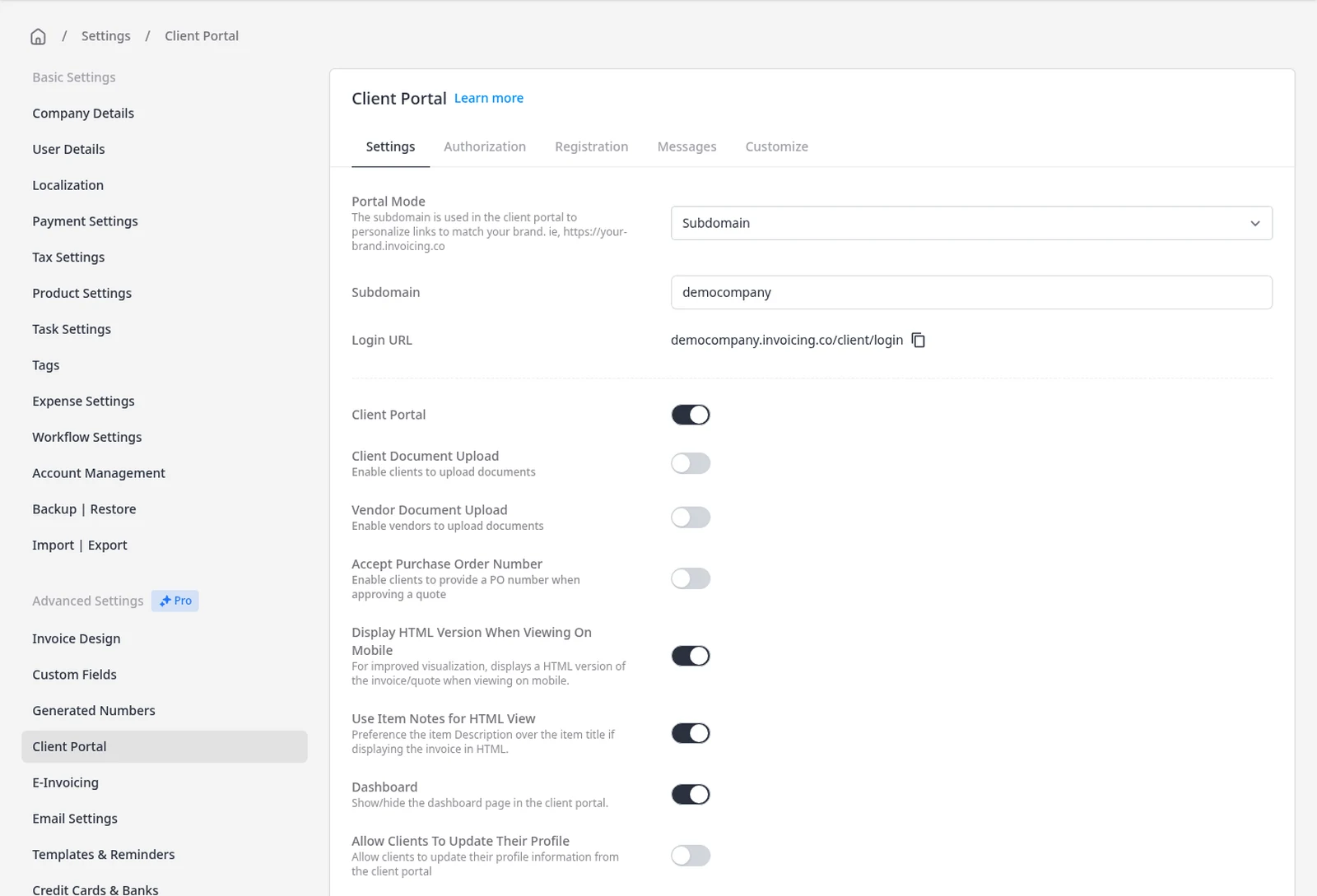
Invoice Ninja Client Portal Settings tab, with optional Client Document Upload and Vendor Document Upload switches

How it works

Turn on only the portal options you want

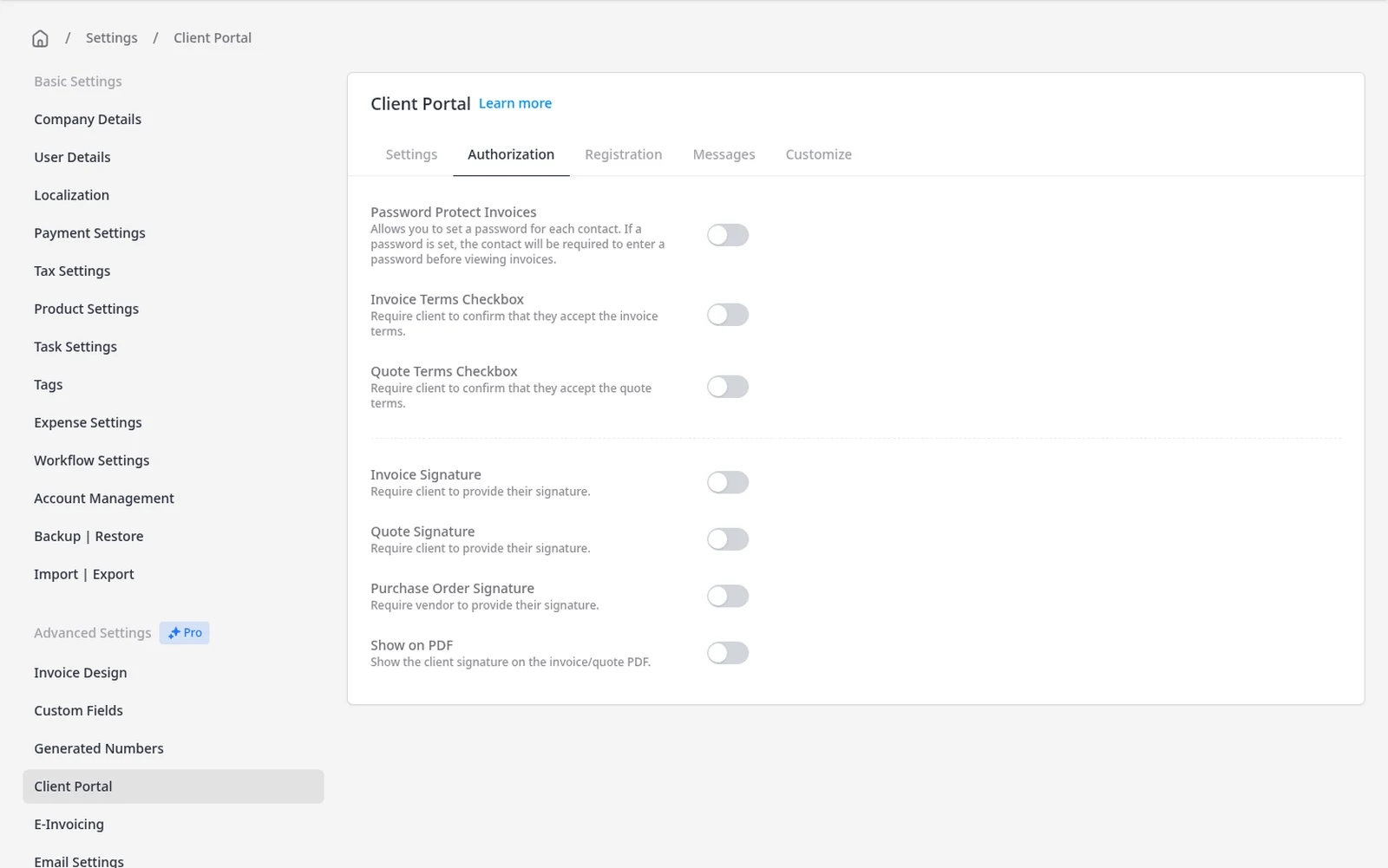
  1. Client Portal Authorization tab, with optional switches for Password Protect Invoices, invoice and quote signatures, and terms checkboxes, all turned off

    Open Client Portal settings

    On Pro or Enterprise, go to Settings โ†’ Client Portal. Client Document Upload and Vendor Document Upload are on the Settings tab. Password Protect Invoices, Invoice Signature, Quote Signature and the terms checkboxes are on the Authorization tab.

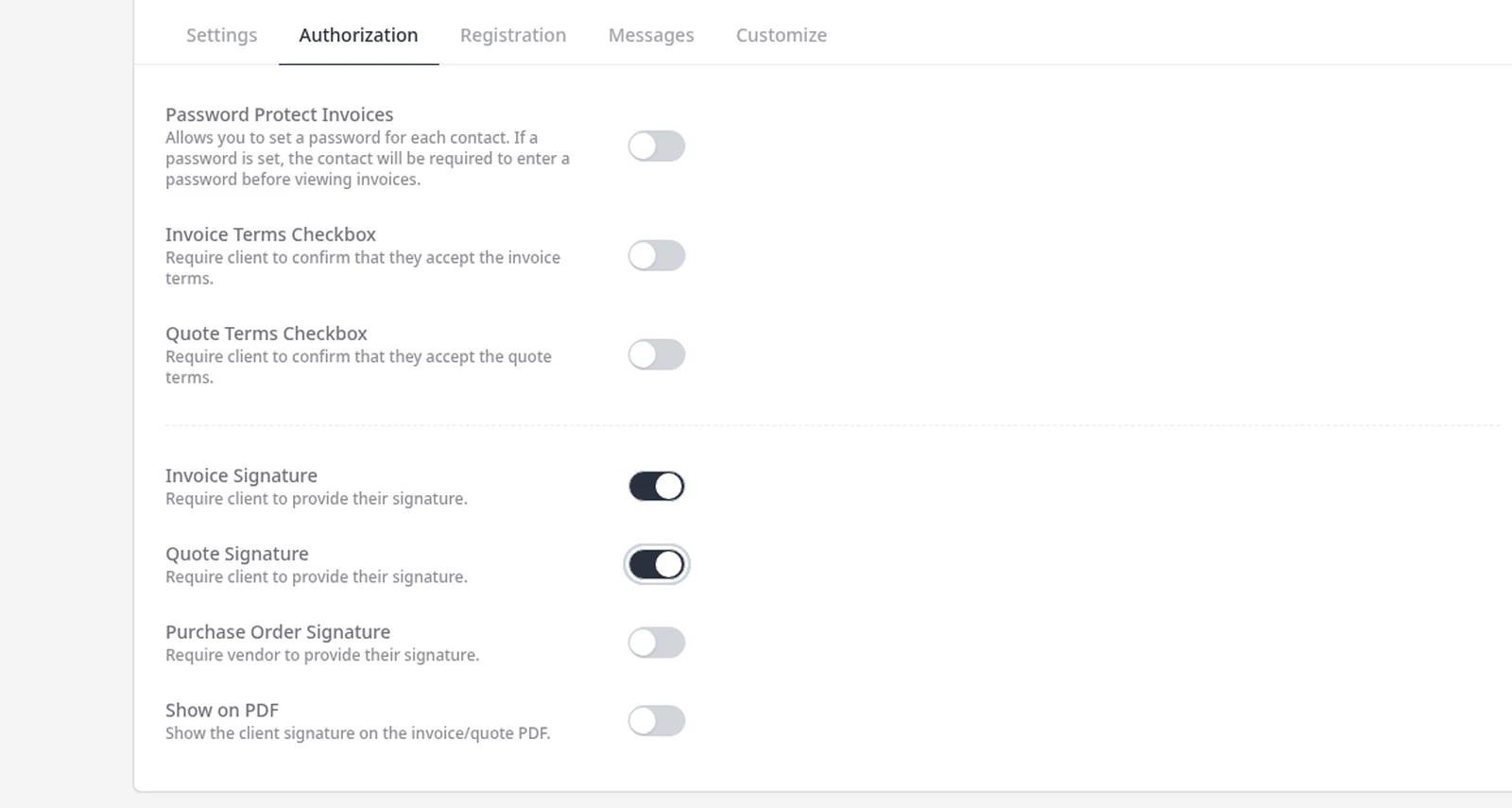
  2. Client Portal Authorization settings, with Invoice Signature and Quote Signature turned on and the other optional switches left off

    Enable only what you need

    Each setting is optional and off until you turn it on. You can require an invoice or quote signature, leave password protection off, or use any other combination.

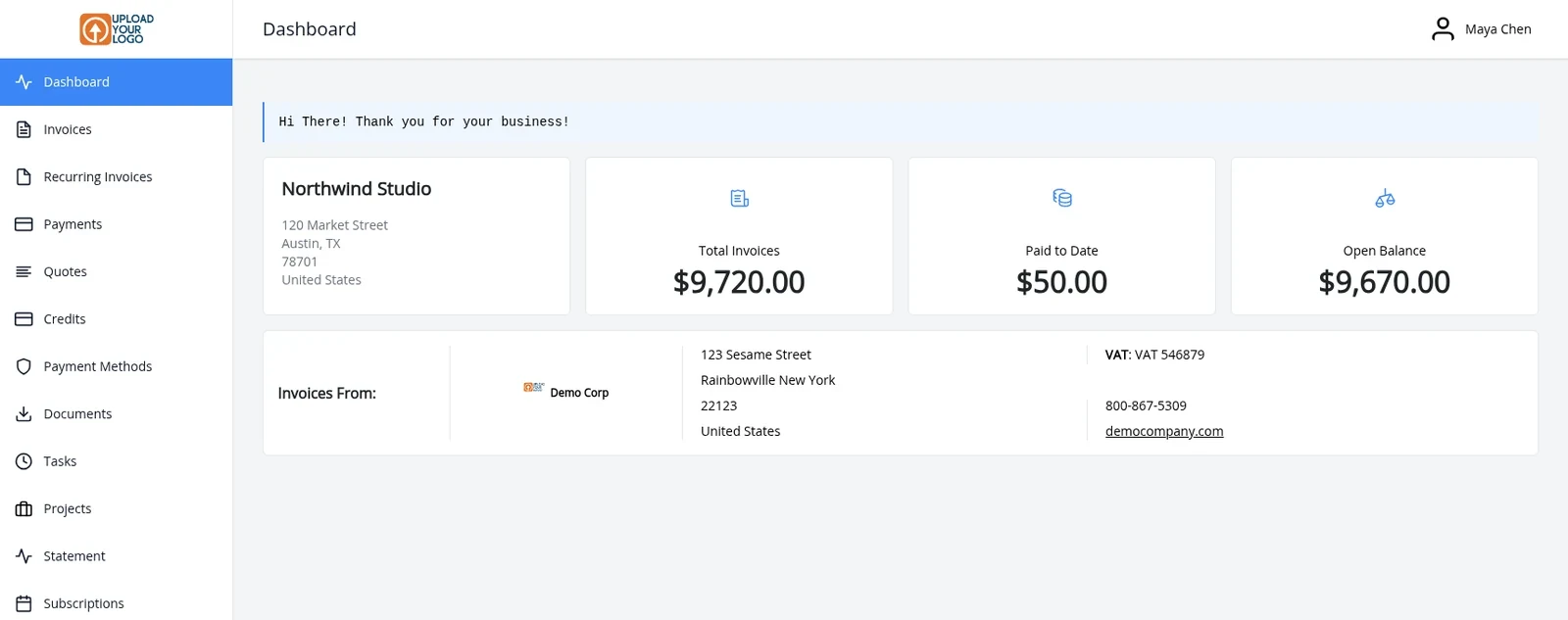
  3. Client portal dashboard for Maya Chen at Northwind Studio, with summary cards for total invoices, paid to date and open balance

    Clients see those choices in the portal

    They can land on a dashboard with summary cards for their invoices, paid to date and open balance. Only the options you enabled appear, such as a password prompt, a signature before payment, or a place to upload a file.

Optional settings for the client portal

These are advanced settings for the client portal, and each one is optional. Signatures and password protection are included on Pro ($14/mo) and Enterprise (from $18/mo). Document uploads, and other document management, are included on Enterprise. Each option is off until you turn it on, under Settings โ†’ Client Portal. Enable only what you need, and leave the rest off.

This page is a short overview of those options. For branding, your portal address and a full tour of the portal, see the branded client portal page and the client portal guide.

Document uploads

Turn on Client Document Upload, on Enterprise, when you want clients to add files, such as a signed contract or purchase-order paperwork, straight to their client record from the portal. You can leave this off if you do not want clients to upload files. Vendor Document Upload is a separate optional Enterprise setting, if you want vendors to upload documents too. Both switches are on the Settings tab.

Unlock documents after payment

Unlock Documents After Payment is a separate optional setting, under Settings โ†’ Online Payments โ†’ Payment Settings. It is not on the Client Portal screen. It is included on Enterprise. The in-app help text is: “Allows client access to invoice documents when an invoice has been paid.” Turn it on when you want clients to get the files attached to an invoice after they pay. Anything to do with documents or attachments is Enterprise only.

This is different from Client Document Upload, which lets clients add files to their own record from the portal, also on Enterprise.

Client e-signatures

On Pro or Enterprise, open the Authorization tab and turn on Invoice Signature when you want a client to provide a signature before they pay an invoice. Turn on Quote Signature when you want a signature before they approve a quote. You can also require a terms checkbox before payment or approval, and optionally show the captured signature on the PDF. All of these stay off until you enable them. This page covers the optional signature and terms settings in the client portal, not a separate signing product.

Password protection

Password Protect Invoices is included on Pro and Enterprise, and is off by default. It lives on the Authorization tab. When you leave it off, clients open the portal from the secure link in your invoice or quote email, with no password to remember. Turn it on if you want to set a password for a contact, so they enter it before viewing invoices.

Client dashboard

When a client opens the portal, they can land on a dashboard with summary cards for total invoices, paid to date and open balance. A Dashboard switch on the Settings tab lets you show or hide that page. If you want a short welcome message at the top, add it under the Messages tab, on Pro or Enterprise. That message is optional too.

What you can do

  • Leave every option off if the standard portal is enough
  • Optionally turn on Client Document Upload or Vendor Document Upload, on Enterprise
  • Optionally turn on Unlock Documents After Payment, on Enterprise, under Settings โ†’ Online Payments โ†’ Payment Settings, so clients can access invoice documents after they pay
  • Optionally require a signature or a terms checkbox before payment or quote approval, on Pro and Enterprise
  • Optionally password-protect invoice views, on Pro and Enterprise, or leave the email link as the only sign-in
  • Optionally show or hide the client dashboard, and add a welcome message, on Pro and Enterprise

Who it’s for

Businesses that want a few extra portal controls, and want each one to stay off until they choose to turn it on.

What you can turn on

  • Document uploads Enterprise

    Optionally turn on Client Document Upload or Vendor Document Upload, on Enterprise.

  • Unlock documents after payment Enterprise

    Optionally let clients access invoice documents after the invoice is paid, on Enterprise. This setting lives under Payment Settings.

  • Client e-signatures Pro

    Optionally require a signature, or a terms checkbox, before a client pays an invoice or approves a quote, on Pro and Enterprise.

  • Password protection Pro

    Optionally set a password for a contact, on Pro and Enterprise, so they enter it before viewing invoices. Leave this off if the email link is enough.

  • Client dashboard

    A dashboard with summary cards for invoices, paid to date and open balance. Optionally show or hide it, and add a welcome message, on Pro and Enterprise.

Tip: Document uploads are on the Settings tab. Password protection and signatures are on the Authorization tab. Unlock Documents After Payment is under Settings โ†’ Online Payments โ†’ Payment Settings, on Enterprise.

Common questions

Do I have to turn these settings on?

No. Client Document Upload, Vendor Document Upload, e-signatures, password protection and the dashboard welcome message are all optional. Each one stays off until you enable it under Settings โ†’ Client Portal, and you can use any combination.

Which plan includes these settings?

Signatures and password protection are included on Pro ($14/mo) and Enterprise (from $18/mo). Client Document Upload, Vendor Document Upload, Unlock Documents After Payment and other document management are included on Enterprise. The client dashboard can be shown or hidden from the Settings tab on Pro and Enterprise, and a custom welcome message is an optional setting on those plans too. All of these stay off until you turn them on.

How do document uploads work?

Client Document Upload is included on Enterprise. When you turn it on, clients can add files, such as a signed contract or purchase-order paperwork, to their client record from the portal. You can leave this off if you do not want client uploads. Vendor Document Upload is a separate optional Enterprise setting.

What is Unlock Documents After Payment?

It is a separate optional setting under Settings โ†’ Online Payments โ†’ Payment Settings, not on the Client Portal screen, and it is included on Enterprise. When you turn it on, clients can access the documents attached to an invoice after that invoice has been paid. This is different from Client Document Upload, which lets clients add files from the portal. Anything to do with documents or attachments is Enterprise only.

What does a client e-signature do?

On Pro or Enterprise, open the Authorization tab and turn on Invoice Signature if you want the client to provide a signature before paying an invoice. Quote Signature does the same before they approve a quote. You can also require a terms checkbox, and optionally show the signature on the PDF. All of these are optional and off until you turn them on.

Is a password required to use the portal?

No. Password Protect Invoices is included on Pro and Enterprise, and is off by default. Clients can open the portal from the secure link in your invoice or quote email. Turn the setting on if you want to set a password for a contact, so they enter it before viewing invoices.

What is the client dashboard?

It is a portal home view with summary cards for total invoices, paid to date and open balance. A Dashboard switch on the Settings tab lets you show or hide that page. You can optionally add a short welcome message under the Messages tab, on Pro or Enterprise. For branding and your portal URL, see the branded client portal page.

Ready to send your first invoice?

Join 200,000+ businesses invoicing with Invoice Ninja. Free to start, no credit card required.

This site is registered on wpml.org as a development site. Switch to a production site key to remove this banner.