
Kanban Project Boards

See your tasks on a Kanban board, drag cards between statuses, and invoice the work when it is done. The Kanban view is part of tasks, and is included on every plan, including Free. It works on mobile too.

  • Included on every plan
  • Drag-and-drop statuses
  • Built for active work
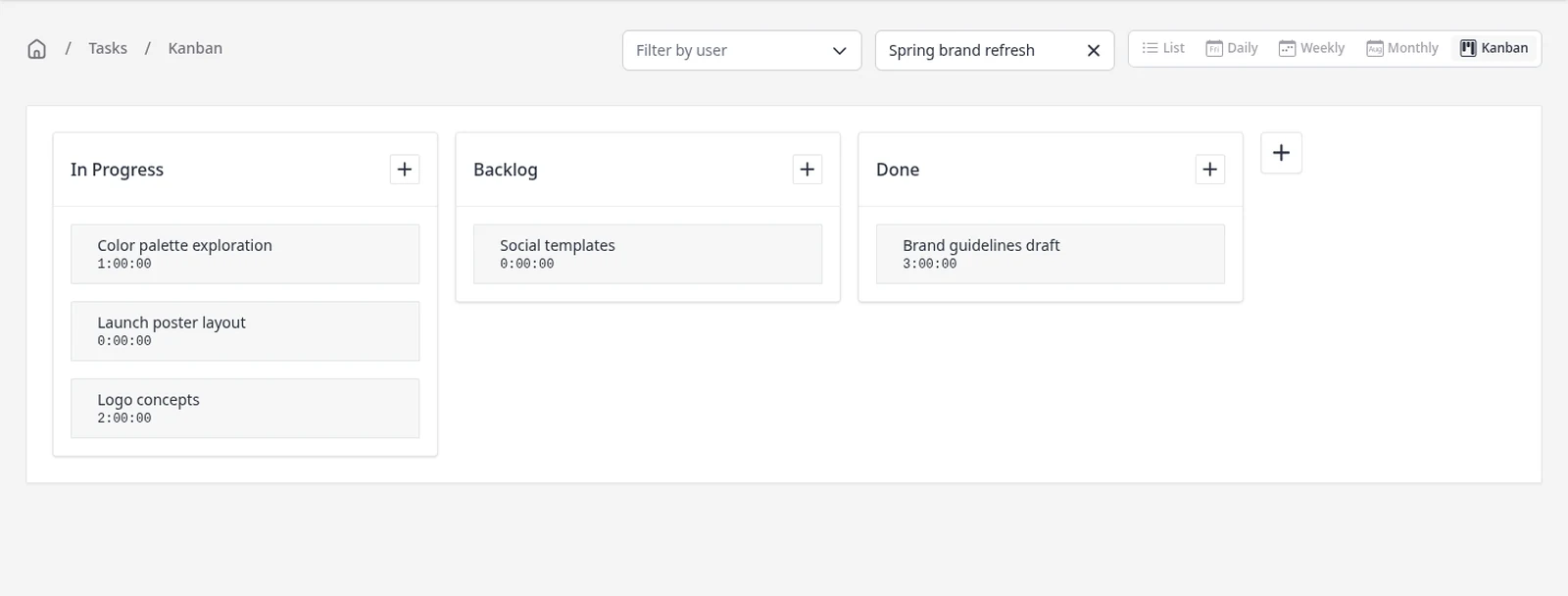
Invoice Ninja Tasks Kanban board for the Spring brand refresh project, with task cards in In Progress, Backlog and Done columns

How it works

See the work, move it, then invoice it

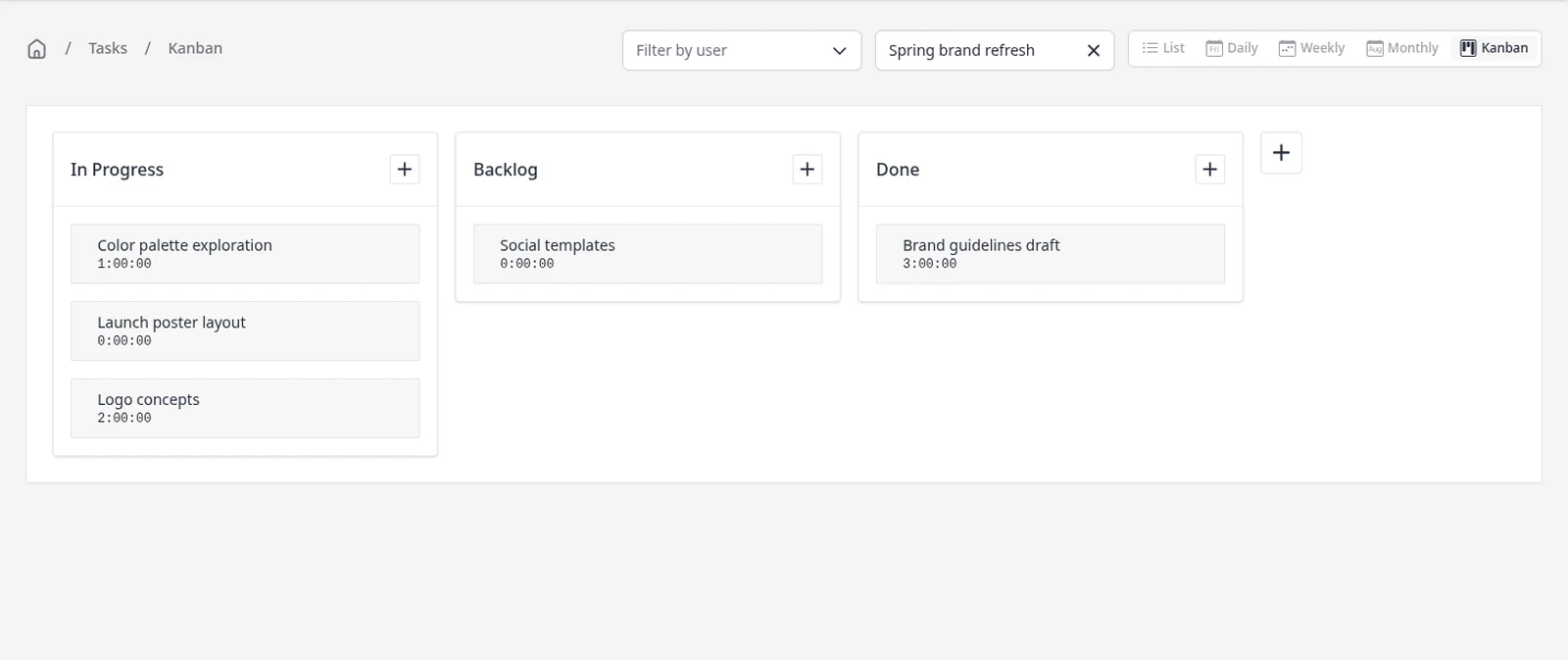
  1. Tasks Kanban view selected in the toolbar, with task cards in In Progress, Backlog and Done columns for Spring brand refresh

    Open the Kanban view

    In Tasks, open the Kanban view. Tasks appear as cards in columns by status, such as In Progress, Backlog and Done. You can filter the board to one project.

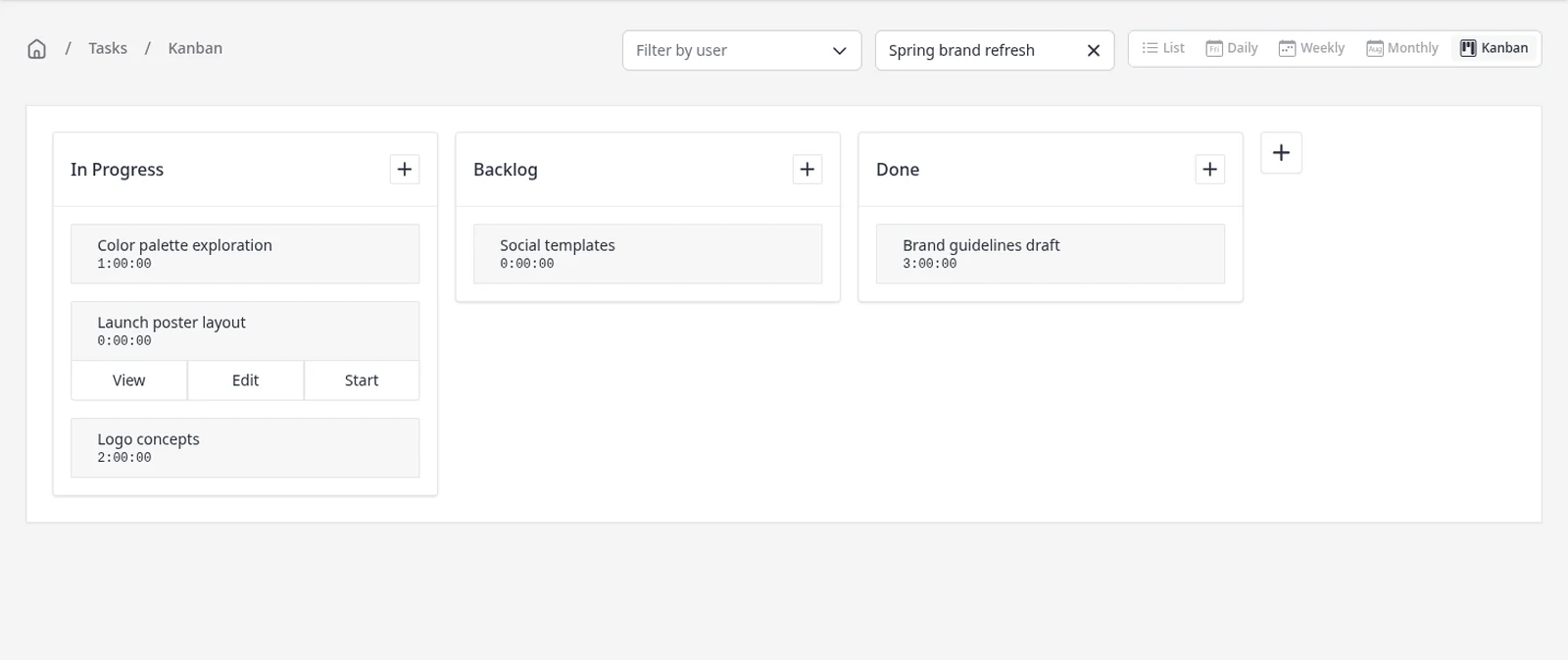
  2. Kanban card for Launch poster layout, showing View, Edit and Start actions

    View, edit or start a task from its card

    Hover a card to View or Edit the task, or press Start to run its timer. You can also drag a card to another column to change its status, or press + to add a task in that column.

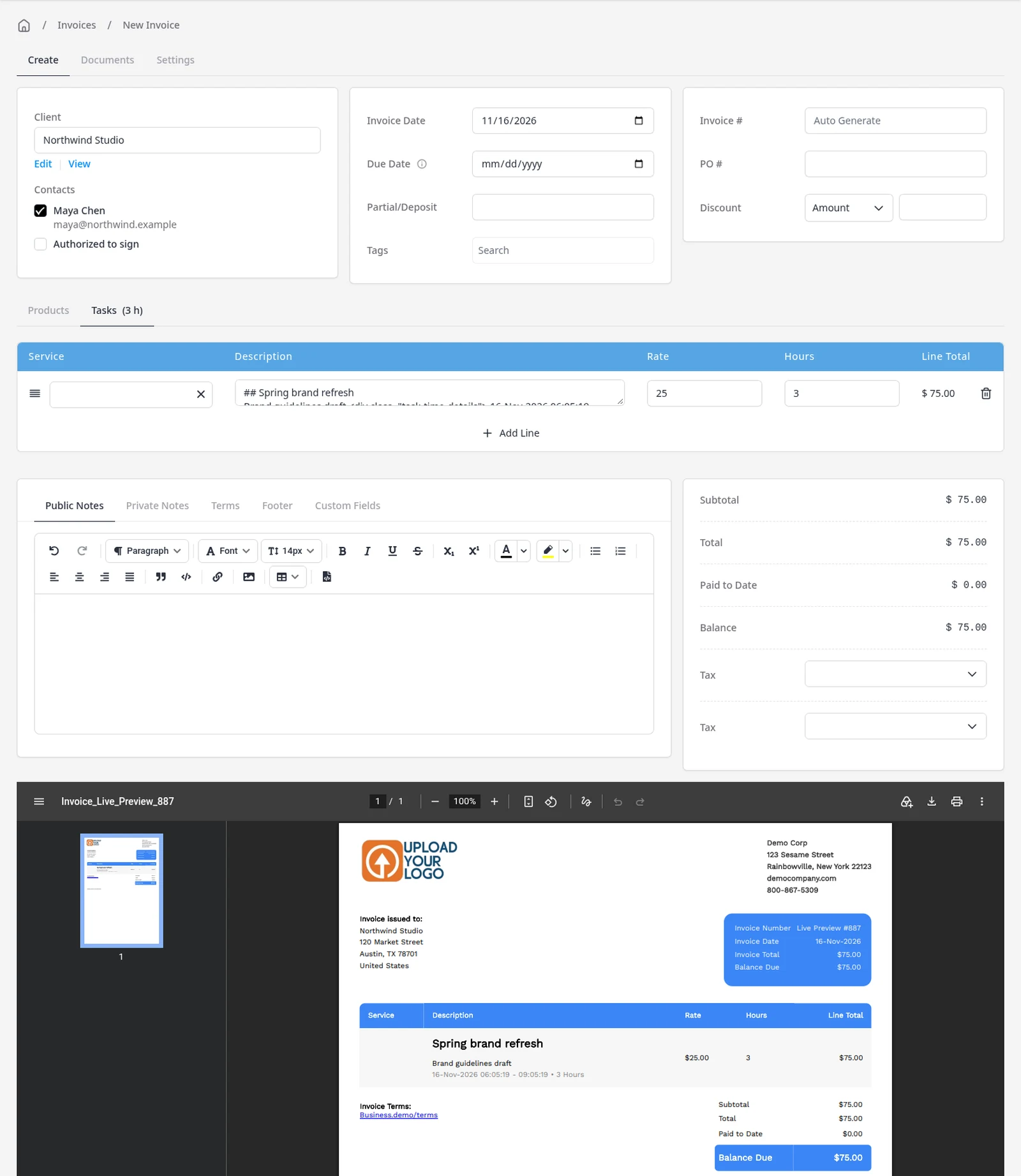
  3. New invoice for Northwind Studio created from a task, with 3 hours totaling $75.00 and a PDF preview of the invoice

    Invoice the work when it is ready

    Use Invoice Task to create a new invoice from a finished task, with the hours already filled in. Invoiced and paid tasks are hidden on the board, so it stays a working view. Use the List view when you need the full history.

A working board for the tasks you still need to finish

The Kanban view is the same tasks you already track, arranged as cards in columns by status. You can see what is in progress, what is in the backlog, and what is done, then drag a card to a new column when the work moves on. Tasks, projects and the Kanban view are included on every plan, including Free. The same Kanban board works on mobile too, in the iPhone and Android apps, as well as in your browser and on desktop.

Hover a card to view it, edit it, or start its timer. Filter the board to one project, and press + beside a column to add a task already in that status. If the built-in statuses are not enough, you can add your own from the board or under Settings โ†’ Task Settings.

The Kanban board is for active work. Invoiced and paid tasks are hidden, so the board stays focused on what is still in progress. When you want the full history, use the List view. When the work is ready to bill, invoice the task or the project, without retyping the hours. For a broader look at project work, see projects.

What you can do

  • View tasks as cards in status columns, on every plan including Free
  • Use the same board on iPhone and Android, as well as in the browser
  • Drag a card to another column to change its status
  • View, edit or start a task from its card
  • Filter the board to one project, or add a task straight into a column
  • Invoice a finished task, and use the List view when you need history

Who it’s for

Freelancers and agencies who already track time in Invoice Ninja and want a visual board for work that is still in progress.

What you can do

  • A board of your tasks

    See in-progress, backlog and done work as cards in status columns, on every plan including Free.

  • Drag to change status

    Move a card to another column to update its status, without opening the full task editor.

  • Actions on the card

    Hover a card to View or Edit the task, or press Start to run its timer.

  • Filter by project

    Filter the board to one project, or add a new task straight into a column.

  • Invoice from the work

    Turn a finished task into an invoice when you are ready. The board hides invoiced and paid tasks.

Tip: The Kanban board hides invoiced and paid tasks on purpose. Switch to the List view when you need the full history.

Common questions

Is the Kanban board included on the free plan?

Yes. The Kanban view is part of tasks, and tasks and projects are included on every plan, including Free.

Does the Kanban board work on mobile?

Yes. The same Kanban board works on iPhone and Android, as well as in the browser and desktop apps.

Why don't I see invoiced tasks on the board?

The Kanban view hides invoiced and paid tasks so you can focus on work that is still in progress. Use the List view when you want the full history.

Can I add my own columns?

Yes. You can add a custom task status from the board, or under Settings โ†’ Task Settings. Give it a name and a color, and it becomes a column you can use everywhere.

Can I invoice a task from this workflow?

Yes. Invoice Task creates a new invoice from the task, with the hours already filled in, or Add to Invoice places the hours on an invoice you already started. If the tasks belong to a project, Invoice Project bills every unbilled task at once. See 1-Click Task to Invoice for that step.

How is this different from the project management page?

Project management is about grouping tasks and expenses, watching hours against a budget, and invoicing unbilled time. This page is the Kanban view of your tasks, so you can see status at a glance and move work across the board. Billable time tracking covers the timer and manual entries.

Ready to send your first invoice?

Join 200,000+ businesses invoicing with Invoice Ninja. Free to start, no credit card required.

This site is registered on wpml.org as a development site. Switch to a production site key to remove this banner.